
What Does OCR Mean? How Optical Character Recognition Works
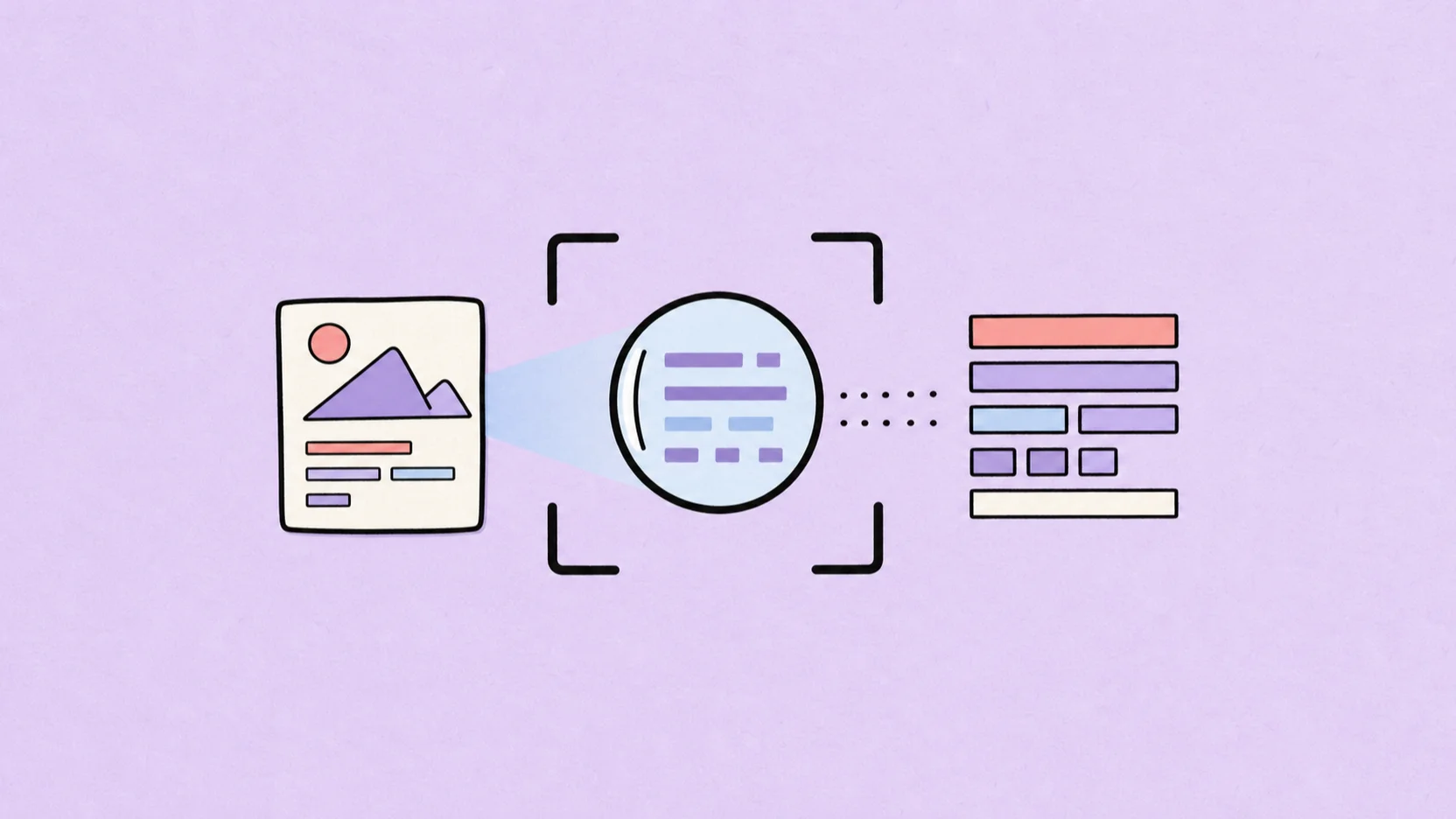
OCR means optical character recognition. It is the technology that turns text visible in an image—such as a scanned page, phone photo, or screenshot—into machine-readable text you can select, search, copy, edit, or process with other software.
The key distinction is simple: without OCR, a computer sees a page scan as pixels. With OCR, it can identify likely letters, numbers, words, and lines within those pixels. The result can save you from retyping, but it still needs review when accuracy or layout matters.
What does OCR stand for?
OCR is short for optical character recognition:
- Optical refers to visual input captured in an image, scan, or camera frame.
- Character means a letter, number, punctuation mark, or symbol.
- Recognition is the process of identifying those visual shapes and interpreting them as text.
In plain language, OCR lets software read text that was previously locked inside a picture. It creates a machine-readable text layer from visual content.
That explains what OCR is in scanning, too. A scanner without OCR produces a digital picture of a page. A scanner with OCR adds a recognition step so the words on that page can become searchable or editable. The scanner captures the image; OCR interprets it.
OCR is not the same as translation, summarization, or document redesign. Those can happen after recognition, but the core job of OCR is narrower: identify visible characters and turn them into usable text.
What can OCR convert?
OCR converts image-based text into machine-readable text. The input and output can take several forms.
Common inputs include:
- Scanned pages and image-based PDFs
- Phone photos of printed documents
- Screenshots from websites, apps, videos, and presentations
- Receipts, invoices, labels, signs, and business cards
- Charts, forms, and graphics containing text
Depending on the tool, the output may be plain text, a searchable PDF, a document file, structured data, or text that you copy directly. A searchable PDF can keep the page image while adding an invisible text layer. A plain-text result focuses on the recognized words and usually leaves the original design behind.
OCR is therefore best understood as an extraction process. It can recover the content of a document without necessarily reproducing its appearance. If you need an editable Word file, for example, a dependable workflow is to extract the words first and then rebuild the headings, lists, and tables in Word. See our guide to converting an image to Word for that second stage.
How does OCR work?
Modern OCR systems vary, but the practical process can be explained in four stages: prepare the image, find the text, recognize the characters, and create an output.
1. Preprocess the image
Before reading the text, OCR software may clean up the input. It can rotate a sideways page, correct skew, reduce noise, strengthen contrast, or separate dark text from a light background.
This stage matters because a camera photo is rarely as uniform as a digital document. The page may be tilted, shadowed, curved near the binding, or photographed from an angle. Preprocessing tries to give the recognition system a clearer and more consistent view.
It cannot repair every problem. If characters are blurred beyond recognition, cropped out, hidden by glare, or reduced to too few pixels, the information may no longer be present in a usable form.
2. Locate text regions
Next, the system identifies areas that are likely to contain text. It separates lines and blocks of writing from photographs, borders, icons, and other visual elements.
On a simple letter, the likely reading order is obvious. On a brochure, receipt, form, or multi-column page, it is more complicated. The OCR system must decide which block comes first and which characters belong to the same line. A tool can recognize individual words correctly while arranging the blocks in an unexpected order.
3. Recognize characters and language
The OCR engine then compares visual patterns with what it has learned about letters, numbers, punctuation, and language. Context helps it decide between similar shapes. For example, the same mark might be interpreted differently depending on the surrounding word or whether the line appears to contain a product code.
Language selection can improve this process because different languages use different scripts, characters, and spelling patterns. Mixed-language content adds another layer of difficulty: a single image may combine Chinese characters, English product names, numbers, and symbols.
Recognition produces likely text, not certainty. That is why names, dates, totals, account numbers, measurements, and other high-impact details should always be checked against the source.
4. Output selectable and searchable text
Finally, the software assembles recognized characters into words, lines, and paragraphs. It may return plain text, embed a searchable layer into a PDF, or pass the content into another document workflow.
The output is now usable by software. You can search for a phrase, copy a quotation, edit a paragraph, translate checked text, or move data into another system. Formatting is a separate question: a clean text result can still need headings, columns, lists, or tables rebuilt manually.
Scanner OCR vs. camera OCR vs. online OCR
The recognition principle is similar across these options; what changes is how the image is captured and where it is processed.
| OCR method | Best for | Main advantage | What to check |
|---|---|---|---|
| Scanner with OCR | Paper archives, contracts, books, and repeat document capture | Consistent, flat, high-resolution page images | Scanner settings, page order, searchable-text output, and batch support |
| OCR camera or phone app | Signs, receipts, labels, and documents away from a desk | Captures text where you find it | Glare, shadows, perspective, curved pages, and camera focus |
| Online OCR | Existing screenshots, photos, and image files | Browser-based access without dedicated scanning hardware | Supported languages, file limits, output type, and privacy policy |
Dedicated OCR scanners can be convenient for recurring paper workflows, especially when automatic page feeding and multi-page processing matter. An OCR camera is faster for a physical object or short piece of text in front of you. Online OCR is useful when the image already exists and you want a focused upload-and-extract workflow.
No method is universally better. The best choice depends on your input, volume, required output, and privacy rules.
What is OCR good at?
OCR works best when characters are clear, upright, large enough to read, and visually separated from the background. Strong use cases include:
- Making a scanned printed page searchable
- Copying text from a screenshot or image-based PDF
- Digitizing printed reports, letters, and notes
- Extracting information from receipts, labels, and business cards
- Recovering text from slides, charts, or graphics
- Preparing checked text for editing, translation, or analysis
Screenshots of digitally rendered text are often good inputs because the characters are front-facing and sharp. Clean office documents with a simple single-column layout are also easier than decorative posters, dense tables, or photos taken in poor light.
If your source is specifically a screen capture, How to Copy Text from a Screenshot compares built-in device features, snipping tools, and online OCR.
What can OCR not guarantee?
OCR reduces manual transcription. It does not guarantee perfect text, correct reading order, or a faithful reconstruction of the source design.
Handwriting support varies by tool
Printed-text OCR and handwriting recognition are related but different problems. Some tools are designed for handwritten notes, while others support only printed or digitally rendered text. Cursive writing, personal letterforms, corrections, and overlapping strokes make handwriting especially difficult.
Do not assume an OCR tool supports handwriting because it can read a printed page. Check the stated capability and test a representative sample before processing a large collection.
Vertical text may create reading-order problems
Vertical writing, side notes, captions, and mixed horizontal-and-vertical layouts can confuse the order of the output. The system may identify the correct characters but place lines or blocks in a sequence that changes the meaning.
This is especially important for language-specific layouts. Our guides to Chinese OCR and Japanese OCR explain how vertical text, mixed scripts, and small character details affect review.
Tables and complex layouts may not be recreated
A table depends on spatial relationships. A number has meaning partly because it belongs to a particular row and column. Plain-text OCR may extract every value but lose those relationships.
Forms, magazines, brochures, diagrams, and multi-column reports create the same issue. Treat OCR as a way to recover the content, then rebuild the structure in Word, Excel, or another suitable editor. Verify every value before using OCR output in calculations or decisions.
What affects OCR accuracy?
OCR accuracy depends on both the source image and the recognition system. The most important factors are:
- Resolution: Tiny or heavily compressed characters contain less detail.
- Focus: Motion blur and missed camera focus can merge character edges.
- Lighting and contrast: Shadows, glare, watermarks, and patterned backgrounds hide strokes.
- Angle and perspective: A tilted or curved page changes character shapes across the image.
- Font and size: Standard printed type is usually easier than decorative, outlined, or very small text.
- Language: The correct recognition language or script model helps interpret character patterns.
- Layout: Columns, tables, forms, captions, and overlapping graphics complicate reading order.
- Source condition: Folds, stains, faded ink, and torn edges can remove information.
You can improve results before changing tools. Start with the original file, keep the page upright, crop away irrelevant content, use even light, and capture the text at a readable size. For a dense page, process one logical section at a time. Then compare the result with the source, prioritizing names, numbers, dates, units, URLs, and specialized terms.
How to choose an OCR tool for your task
Choose based on the actual job rather than the broad promise to “recognize text.”
Images and screenshot text extraction
For a few JPG, PNG, or screenshot files, look for a simple image-to-text workflow and an output you can easily copy or download. Built-in device recognition is often quickest for one short snippet. An online tool is more convenient when you want a separate result file or a repeatable browser workflow.
For a wider overview, Picture to Text App: Extract Text from Images Online covers photos, screenshots, cards, labels, and scanned pages.
Scanned documents and multi-page material
For an archive, book, or long report, prioritize batch processing, automatic page feeding, searchable-PDF output, page-order control, and a practical review process. A scanner with OCR or dedicated document application may suit this work better than a tool designed for one image at a time.
Test several representative pages first. Include a clean page, a dense page, a table, and any recurring stamps or annotations so you can judge the real cleanup effort.
Multilingual text recognition
Check whether the tool explicitly supports the languages and scripts in your source. Also consider whether one image contains several languages. Selecting the closest recognition language can help, but mixed scripts, uncommon names, and product codes still need review.
Do not judge language support from one short, clean sentence. Test the fonts, layouts, punctuation, and character sizes found in your actual material.
Sensitive files and privacy requirements
OCR may expose the full contents of a document to the software or service processing it. Before uploading personal, confidential, legal, medical, financial, or regulated material, confirm that the workflow meets your organization’s requirements.
Review the provider’s data handling, retention, access controls, and deletion options. If an online service is not approved, use an authorized local or enterprise workflow. Crop the source to the minimum necessary area whenever possible.
Try image text extraction with DeckFlow Image OCR
If you have a photo or screenshot and want to see OCR in practice, DeckFlow Image OCR provides a browser-based image-to-text workflow. It is designed for individual images rather than every OCR scenario described above.
1. Upload the image you want to recognize
Choose the clearest available photo, screenshot, or scanned-page image. Rotate it upright, crop unrelated areas, and make sure the important text is not cut off. Upload one image for processing.
2. Select the recognition language
Choose the language that best matches the text in the image. If the image mixes languages, select the main language and plan to inspect names, numbers, foreign terms, and punctuation closely.
3. Run OCR and check the output
Start the extraction, then download and unzip the resulting archive. Open the extracted text file beside the source image. Check important characters and reading order before copying the result into a document, spreadsheet, note, or translation workflow.
This is a useful way to experience what OCR does well: it turns visible words into editable content. It also demonstrates the essential final step—human review.
Frequently Asked Questions
Is OCR 100% accurate?
No. Results vary with image quality, font, language, layout, and the OCR system. Clear printed text can produce a strong result, but important details should always be checked against the source.
What languages can OCR recognize?
Language support depends on the tool. Some systems focus on one script, while others support many languages. Confirm that your language is listed and test content that matches your actual fonts and layouts.
Which image formats work with OCR?
Common OCR workflows accept formats such as JPG and PNG, but supported formats vary. Some document tools also process TIFF files or image-based PDFs. Check the tool before preparing a large batch.
Is there a maximum OCR file size?
Usually, but the limit differs by service, application, and account. File dimensions, page count, and batch limits may matter in addition to megabytes. Review the current tool limits before processing large scans.
What does OCR output look like?
It may be plain text, a searchable PDF, a document, structured data, or text copied directly from an image. The output format does not guarantee that the original layout, tables, or reading order will be preserved.
Related Reading
- Picture to Text App: Extract Text from Images Online — Learn the full workflow for extracting and reviewing text from photos, scans, cards, and graphics.
- How to Copy Text from a Screenshot — Compare desktop, mobile, snipping-tool, and online OCR methods.
- Chinese OCR: How to Extract Chinese Text from Images — Understand script, spacing, and layout challenges in Chinese image text.
- Japanese Text from Image: How to Use Japanese OCR Online — Review mixed scripts, small kana, vertical text, and other Japanese OCR considerations.