
Japanese Text from Image: How to Use Japanese OCR Online
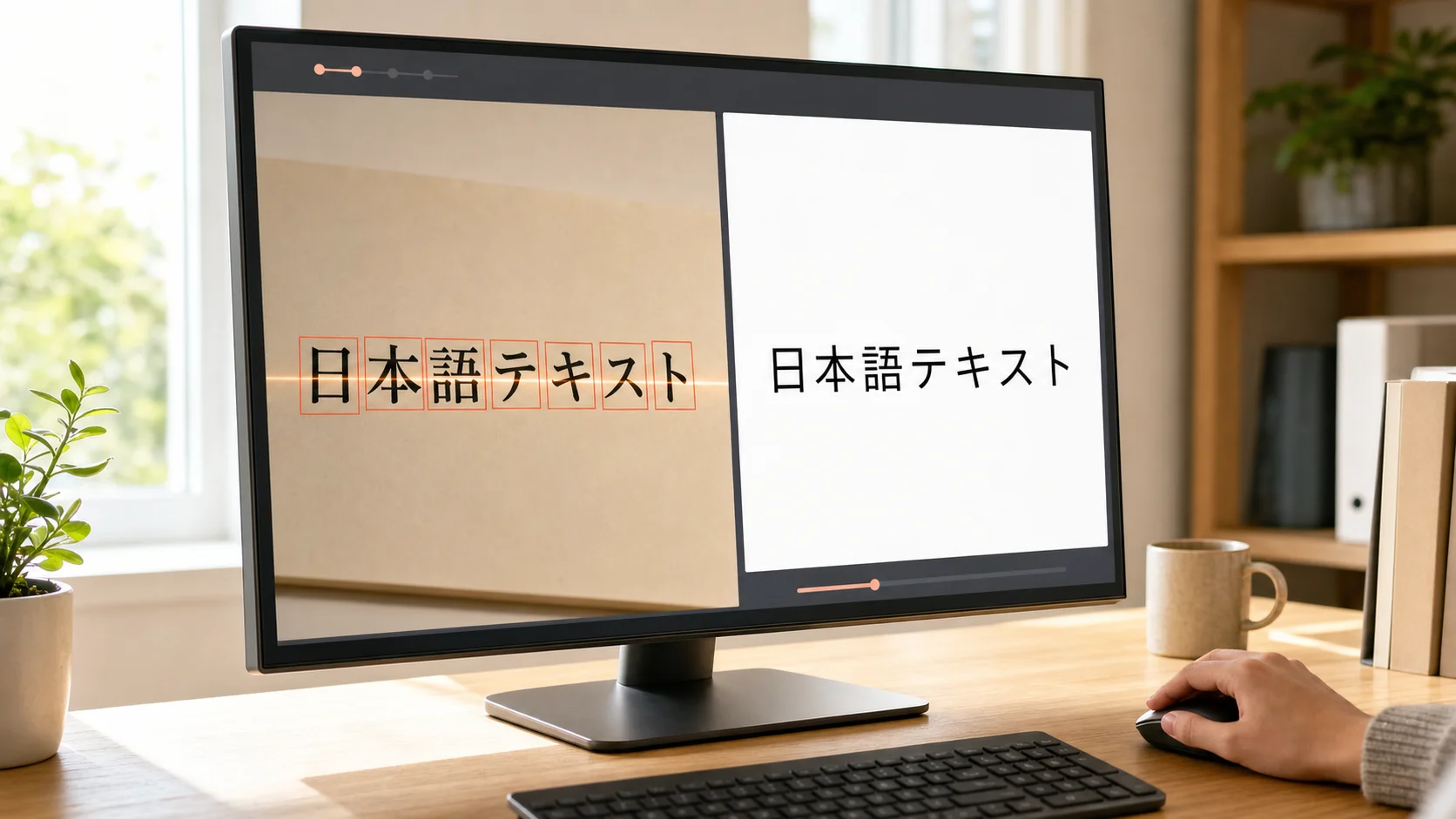
Japanese OCR turns printed or digitally rendered Japanese text in a photo, screenshot, scan, or graphic into text you can select, search, edit, and translate. The practical workflow is straightforward: prepare one clear image, upload it to an online OCR tool, download the result, and compare the extracted text with the source.
That final comparison is essential. Japanese combines kanji, hiragana, katakana, Latin letters, numbers, and punctuation, sometimes within one line. Small kana, diacritical marks, vertical writing, furigana, and dense page layouts can also affect recognition. This guide explains how to extract Japanese text from an image and review the result efficiently.
What is Japanese OCR?
OCR stands for optical character recognition. It analyzes visible character shapes in an image and converts them into machine-readable text. A Japanese OCR workflow is intended for printed or digitally rendered Japanese content such as:
- Kanji, hiragana, and katakana in the same image
- Japanese text mixed with English letters, model numbers, or URLs
- Screenshots of websites, apps, chats, presentations, and image-based PDFs
- Scanned typeset book pages, printed notices, forms, labels, and machine-printed receipts
- Menus, signs, posters, charts, and product packaging
The output is an editable text layer rather than a copy of the original visual design. OCR extracts characters and their likely reading order, but it does not recreate columns, form fields, table relationships, or page formatting. Those elements must be rebuilt in Word, Excel, or another application when needed.
How to use Japanese OCR online
DeckFlow Image OCR provides a browser-based way to extract text from images and supports multiple languages, including Japanese, Chinese, and English.
Step 1: Start with the clearest image
Use the original photo, scan, or screenshot whenever possible. Avoid images that have been repeatedly compressed by messaging apps. Check that the Japanese characters are readable at normal zoom and that the edges of the text are not cropped.
For a phone photo, place the printed page flat, hold the camera parallel to it, and avoid glare or shadows. For a screenshot, increase the page or app zoom before capturing small text.
Step 2: Crop and rotate the image
Remove unrelated borders, navigation bars, and background objects. Rotate the image so horizontal text is level and vertical text is upright. If a page has several unrelated sections, crop one logical region at a time to make the reading order easier to check.
Step 3: Upload one image
Open DeckFlow Image OCR and upload the prepared image. The tool processes one image at a time, so submit each page or image separately and review its result before moving to the next one.
Step 4: Download the extracted text
After processing, download the resulting ZIP archive, unzip it, and open the extracted text file. Keep the source image beside the result for a side-by-side comparison.
Step 5: Check characters and reading order
Start with names, dates, prices, measurements, addresses, and product codes. Then review headings, captions, columns, and table cells. Pay particular attention to small kana, punctuation, and any place where Japanese is mixed with English or numbers.
Step 6: Move the text to its destination
Paste paragraphs into Word, Google Docs, or a notes app. Move row-and-column data into Excel and rebuild the table structure. If the next step is translation or summarization, work from the checked Japanese text rather than the raw OCR output.
Why Japanese text recognition can be difficult
Japanese OCR needs to interpret several writing systems and layout conventions at the same time.
Kanji, hiragana, and katakana appear together
A single Japanese sentence can combine complex kanji with simpler kana. Katakana is frequently used for loanwords, product names, and technical terms, while hiragana carries grammatical information. A recognition error in one small character can change a word ending or produce a different term.
Small kana and small tsu matter
Small characters such as ゃ, ゅ, ょ, and っ are not interchangeable with their full-size forms. Their size changes pronunciation and meaning. When the source text is tiny or blurry, OCR can miss the size difference, so check these characters in context.
Dakuten, handakuten, and the long vowel mark are easy to lose
Marks such as dakuten and handakuten distinguish pairs like か and が, or は, ば, and ぱ. The katakana long vowel mark ー can also be confused with a line, dash, or background element. These details deserve a focused review in names and loanwords.
Japanese normally has limited word spacing
Japanese sentences usually do not place spaces between every word. OCR may insert breaks based on the visual line layout rather than the language. Read the output as complete sentences and remove spaces or line breaks that interrupt the intended phrasing.
Horizontal text, vertical text, and furigana can share a page
Modern business content is usually horizontal, but books, signs, packaging, and editorial designs may use vertical writing. Furigana can place small kana beside or above kanji. OCR may extract the visible characters without preserving their intended relationship or reading sequence, so compare the output directly with the image.
Latin letters, numbers, and symbols need separate attention
Japanese images often include model numbers, dates, prices, currencies, URLs, email addresses, and English product names. Check visually similar characters such as 0 and O, 1 and l, hyphens and long vowel marks, and full-width versus half-width punctuation.
How to improve Japanese OCR accuracy
Most avoidable OCR errors begin with the source image. Before running the image again, use this checklist:
- Use the original file. A full-resolution scan or screenshot contains more character detail than a compressed copy.
- Capture the page straight on. Perspective distortion makes characters near the edges narrower and harder to recognize.
- Improve lighting and contrast. Avoid shadows, glare, watermarks, and patterned backgrounds across the text.
- Crop tightly. Remove unrelated graphics and process one logical area when the page has several columns or content blocks.
- Keep text upright. Rotate sideways images before OCR and separate vertical and horizontal sections when practical.
- Avoid aggressive filters. Heavy sharpening can erase fine marks or create false strokes.
- Re-run difficult regions separately. A small caption, furigana block, or low-contrast label may work better as its own crop.
- Proofread with context. Check whether each recognized character makes sense in the word and sentence, especially for names and specialized terms.
For legal, financial, medical, academic, or operational content, compare every important detail with the source. OCR reduces retyping, but it does not replace human verification.
Common Japanese image-to-text use cases
Copy Japanese text from a screenshot
Screenshots are often strong OCR inputs because the text is front-facing and digitally rendered. Crop away menus and unrelated interface elements, then review usernames, timestamps, emojis, and line breaks separately. For more methods, see How to Copy Text from a Screenshot.
Digitize a printed Japanese document
Scan or photograph one printed page at a time. Keep the original images until proofreading is complete. If you need an editable document, extract the words first, then rebuild headings, lists, and tables in Word with the image-to-Word workflow.
Extract Japanese text from menus, signs, and packaging
Photograph the text straight on and fill the frame with the relevant area. Reflections, curved containers, and decorative lettering can reduce readability. Verify prices, product names, ingredients, addresses, and warnings directly against the image.
Recover text from a slide or chart
Presentation screenshots and chart images can combine titles, labels, legends, and data points. Process dense regions separately, then rebuild the hierarchy. OCR extracts the words but does not preserve the relationship between a label and the visual element it describes.
How to review Japanese OCR output efficiently
Start with information that would cause the biggest problem if it were wrong:
- Personal names, company names, and place names
- Dates, prices, percentages, totals, and units
- Phone numbers, email addresses, URLs, and product codes
- Small kana, dakuten, handakuten, and long vowel marks
- Kanji with similar visual forms
- Headings, numbered steps, and table labels
- Vertical-text order and furigana placement
- Full-width and half-width punctuation
Next, repair the structure. Join lines that belong to one paragraph, restore bullets, and rebuild tables using real rows and columns. If the text will be translated, save a checked Japanese copy so you can distinguish OCR errors from translation decisions later.
Frequently Asked Questions
Can Japanese OCR recognize kanji, hiragana, and katakana?
Japanese OCR is designed to recognize printed or digitally rendered Japanese text containing all three writing systems. Results still vary with image quality, type size, font, and layout, so uncommon kanji and small kana should be checked carefully.
Can I extract Japanese text from a screenshot?
Yes. Crop the screenshot to the relevant area, upload it to an OCR tool, and compare the extracted text with the source before copying or translating it.
Does this Japanese OCR workflow support handwriting?
No. This workflow is intended for printed or digitally rendered Japanese text and does not support handwritten Japanese. Handwritten content should be transcribed manually or processed with a dedicated handwriting-recognition tool.
Can Japanese OCR preserve vertical text or document layout?
No. OCR extracts characters and a likely reading order; it does not recreate vertical layout, columns, furigana relationships, tables, forms, or the original page design. Rebuild the required structure after checking the text.
Is it safe to upload Japanese documents to an online OCR tool?
Use a service that meets your organization’s privacy and data-handling requirements. Do not upload confidential, regulated, or personal content to an unapproved service, and crop the image to include only what you need to process.
Extract Japanese text without retyping it
A dependable Japanese OCR workflow has three parts: start with a clear image, extract the text, and verify the result in context. Careful review of mixed scripts, small kana, pronunciation marks, reading order, and numbers will prevent more work later.
Use DeckFlow Image OCR when you want to turn an image containing printed Japanese into downloadable text you can review and reuse.
Related Reading
- Chinese OCR: How to Extract Chinese Text from Images — Learn how Chinese character recognition differs across scripts, layouts, and source images.
- Picture to Text App: Extract Text from Images Online — Explore a broader workflow for photos, screenshots, scans, and other image-to-text tasks.
- How to Copy Text from a Screenshot — Compare built-in text selection with browser-based OCR.
- How to Convert an Image to Word — Turn extracted text into a structured, editable document.