
How to Copy Text from a Screenshot: OCR Methods for Desktop and Mobile
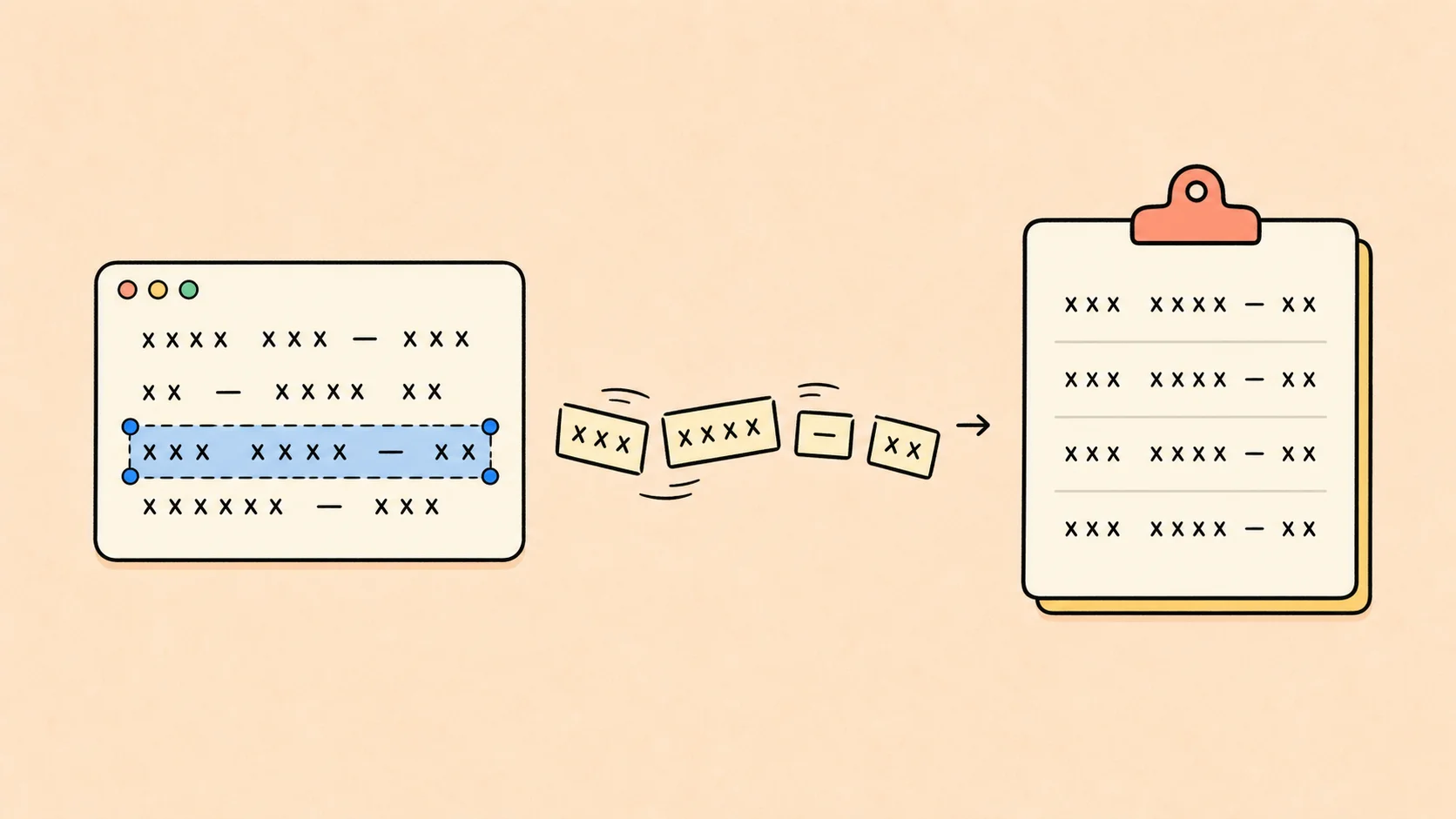
The fastest way to copy text from a screenshot is usually to use your device’s built-in text selection. If that option is unavailable, the screenshot is complex, or you want a downloadable text result, run the screenshot through OCR instead.
This matters whenever text is visible on screen but cannot be highlighted: an error message, a quote in an image, a slide, an image-based PDF, a frame from a video, or a conversation you need to reference. You do not need to retype it all. You need a workflow that turns the screenshot into text you can check and reuse.
Choose the fastest route first
Before uploading anything, match the method to the task:
- One short, clear snippet: try built-in text selection on your phone or computer.
- A screenshot you need to save, edit, or process in a browser: use an online OCR workflow.
- Text currently visible on your desktop: use a screenshot or screen-snipping tool that offers text extraction, if your system provides one.
- A table, form, or multi-column page: extract the text first, then rebuild the structure in Word or Excel.
Method 1: Use DeckFlow Image OCR for an uploaded screenshot
DeckFlow Image OCR is useful when you have a screenshot file and want to extract its text online. It works well as a dedicated workflow when you need to retrieve, review, and save the result rather than copy a single short line.
- Take the screenshot, or locate the screenshot file you already saved.
- Open DeckFlow Image OCR and upload the image.
- Submit the file for OCR processing.
- Download the resulting ZIP archive to your computer.
- Unzip the archive to access the file containing the extracted text.
- Open that text file, compare it with the screenshot, then copy the text into the app or document where you need it.
This path is especially useful for screenshots from web pages, image-based PDFs, shared documents, or video frames. It separates text extraction from the next task, so you can review the content before pasting it into a message, note, Word document, or spreadsheet.
Method 2: Use built-in image text selection on your device
Many current phones and computers can recognize text inside screenshots. For a quick copy, open the screenshot in your device’s photo viewer, preview app, or image editor, then look for an option to select or copy text from the image.
The exact feature name and availability depend on the device, operating system, and version. The general process is the same:
- Open the screenshot at a comfortable zoom level.
- Activate the text-selection feature.
- Drag over the text you need.
- Copy it and paste it into the destination app.
This is often the fastest option for a clear screenshot with one or two lines. It is less ideal when you need a separate text file, want to keep a record of the extraction, or are working with several screenshots in a row.
Method 3: Extract text directly from the screen with a snipping tool
Some desktop screenshot tools can capture an area of the display and offer OCR or text-extraction actions. This can be useful when the information is currently on screen and you do not want to save, upload, and reopen a screenshot manually.
The practical workflow is simple: capture only the area that contains the text, use the tool’s text-extraction option if available, then review and copy the result. Crop tightly. A smaller, focused capture gives OCR less irrelevant visual information to work through.
If your snipping tool does not offer text extraction, save the capture as an image and use an online OCR tool. The underlying task is the same: convert visible pixels into selectable text.
How to copy text from different types of screenshots
Webpage screenshots
If you can still open the webpage, try selecting the original text first. If the text lives inside an image, canvas, embedded PDF, or social post image, capture the relevant area and use OCR. Crop away navigation bars, ads, and unrelated content before processing.
Video-frame screenshots
Pause on the sharpest possible frame before capturing. If subtitles or small labels are involved, make the player larger before taking the screenshot. Review names, timestamps, and punctuation against the frame after extraction.
Image-based PDF screenshots
First test whether the PDF already has selectable text. If it does, copying directly may be faster. If it does not, take a high-resolution screenshot of the relevant section and use OCR. For an entire scanned document, a page-by-page workflow is easier to review than one giant image.
Chat, product, and app screenshots
Screenshots of conversations, pricing, settings, or product details often include short labels and values. Extract the text, then verify the fields that matter. Do not assume a copied screenshot is an authoritative record if a date, price, account name, or setting affects a decision.
Why text extraction sometimes fails
OCR reads what it can identify in the pixels it receives. A result may need cleanup when the screenshot is too small, blurry, cropped, heavily compressed, low contrast, or crowded with interface elements.
Try these fixes:
- Capture the screen again at a larger zoom level.
- Crop closely around the words you need.
- Avoid shrinking the screenshot before uploading it.
- Process separate regions instead of one dense, full-screen image.
- Compare important text with the original before using or sharing it.
For a screenshot with columns, tables, or several content blocks, check the output order carefully. OCR can identify text without reproducing the screenshot’s visual hierarchy or placement.
Multi-language screenshots, tables, and low-resolution images
Screenshots frequently mix languages, numbers, icons, and interface labels. Process the cleanest available capture, then verify anything that is easy to misread: names, currencies, dates, codes, punctuation, and short labels.
Tables need special care because their meaning depends on rows and columns. Once the text is extracted, rebuild it as a real table in Excel or Word instead of relying on spaces to keep the content aligned. For a longer document workflow, see How to Convert an Image to Word.
Low-resolution screenshots may still be useful for finding the general wording, but they should not be your only source for important information. If possible, return to the original page, PDF, or application and capture it again at a larger size.
What to do after copying text from a screenshot
Once you have reviewed the text, put it where it is most useful:
- Paste a short quote into your notes or research document.
- Send a cleaned-up error message to support or a teammate.
- Move a list or paragraph into Word for editing.
- Rebuild a data table in Excel.
- Extract text from a visual reference before translating or summarizing it.
For broader image-to-text use cases beyond screenshots, read Picture to Text App: Extract Text from Images Online. If you want to turn extracted text into a presentation, explore DeckFlow Create.
FAQ
Can I copy text from a screenshot without typing it?
Yes. Use the text-selection feature built into your device when available, or run the screenshot through OCR to produce extractable text. Always review the result before relying on it.
Why can’t I select text in my screenshot?
A screenshot is an image, so its text is not selectable by default. Text selection works only when your device or an OCR tool recognizes the characters in that image.
Is an online OCR tool better than built-in text selection?
Neither is always better. Built-in selection is usually fastest for one short, clear snippet. Online OCR is more useful when you want a downloadable result, need a browser-based workflow, or need to keep and review the extracted text.
Can I copy a table from a screenshot into Excel?
You can extract the text, but you should check the row and column structure and rebuild it in Excel. OCR output may not preserve the table’s layout exactly.
Is it safe to upload screenshots to an OCR service?
Use a workflow that meets your organization’s privacy requirements. Avoid uploading sensitive screenshots to a service that has not been approved, and check extracted text before sharing or storing it elsewhere.
Copy screenshot text with less retyping
Whether you use built-in text selection, a screen-snipping tool, or online OCR, the dependable habit is the same: start with the clearest capture, extract only what you need, and check important details against the source.
Try DeckFlow Image OCR when you want a browser-based way to turn an uploaded screenshot into a downloadable text result.