
Picture to Text App: Extract Text from Images Online
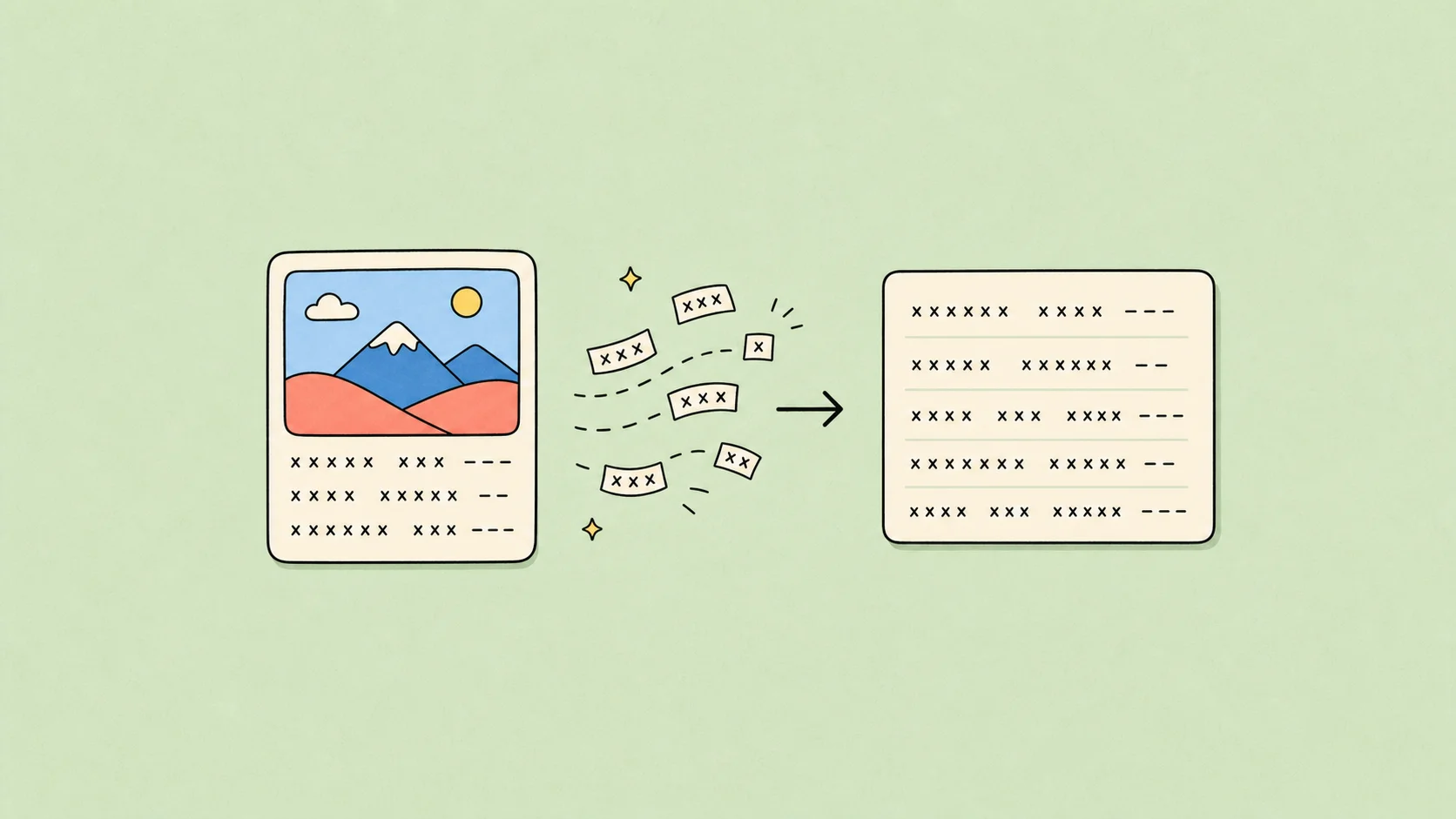
A picture-to-text app turns the words trapped inside a photo, screenshot, or scanned page into text you can use. Upload the image, run OCR, then review the extracted content before copying it into a note, document, spreadsheet, or message.
That is often faster than retyping a page by hand—and more useful than merely saving another image. The important expectation to set is simple: OCR extracts the words in an image. It does not automatically recreate every visual detail of the original page.
This guide explains what a picture reader can handle, how to use an online image-to-text workflow, and what to do with the result afterward.
What can a picture-to-text app extract?
Picture-to-text tools are useful whenever text is visible but cannot be selected. Common examples include:
- A screenshot of a webpage, chat, presentation, or PDF
- A business card that needs to become contact information
- A scanned document page that is really just an image
- A receipt, invoice, or product label you need to reference
- A photo containing text in Chinese, English, Japanese, or another supported language
The best input is a sharp, upright image where the text is clearly visible. A tool can often extract the words from a busy image, but the more visual structure the page has, the more carefully you should check the output.
For example, a single-column letter may convert into a clean block of text. A multi-column brochure may still yield the right words, but the reading order and spacing can need correction. A table can require manual rebuilding after extraction.
Method 1: Use DeckFlow Image OCR to extract text online
DeckFlow Image OCR is an online option for extracting text from an image. It is designed for the extraction step: turning image content into a file that you can open, check, and reuse.
Here is the workflow:
- Open DeckFlow Image OCR and upload your photo, screenshot, or document image.
- Submit the file for OCR processing.
- Download the resulting ZIP archive to your computer.
- Unzip the archive to access the file containing the extracted text.
- Open the text file and compare it with the original image.
- Copy the text into the destination you need, such as a note, Word document, spreadsheet, or translation workflow.
This approach is especially handy when the source is not a document at all—for example, a screenshot with unselectable text or a photo of a printed notice. The output gives you an editable content layer without requiring you to type the whole image from scratch.
Method 2: Use the built-in text recognition on your phone or computer
Many devices now include a way to select text in images. If the image is already stored locally and you only need one short line, a built-in option can be the fastest route.
In general, open the image in your device’s photo viewer or screenshot tool, look for a text-selection action, then copy the detected text. The exact labels and availability vary by device, operating system, and version.
Built-in recognition works well for quick, one-off tasks. An online picture reader is often more convenient when you want a dedicated downloadable result, need to work from a computer browser, or want a repeatable upload-and-save workflow.
Photos, screenshots, notes, and business cards are not the same
The source image affects what “good results” look like.
Photos of documents
Keep the page flat and well lit. Make sure the entire page is in frame, and rotate it before processing if needed. Perspective distortion and cropped edges make checking more important.
Screenshots
Screenshots tend to be a strong use case because the text is often sharp and front-facing. They are useful for copying a quote from a webpage, an error message, information in a video frame, or text in an image-based PDF.
Notes and short labels
For notes, labels, signs, or packaging, the goal is usually to capture the words quickly rather than to recreate the design. Extract the text, then clean up line breaks and punctuation in your destination app.
Business cards
Business cards combine names, roles, phone numbers, email addresses, and visual design. Extract the text first, then enter key contact fields into your contacts app or CRM one by one. Always verify phone numbers, email addresses, and names against the card.
What happens with tables, columns, and complex layouts?
OCR extracts the text it can identify, but a visual page is not always a simple sequence of sentences. Tables, columns, forms, labels, and layered designs use position as part of their meaning, so review the output order against the original image.
When you extract text from those images, expect to do some cleanup:
- Check that columns have not been read across instead of down.
- Rebuild a table in Word or Excel rather than relying on spaces for alignment.
- Add headings and bullet lists again when the original document needs hierarchy.
- Compare numbers, dates, names, totals, and IDs directly with the source image.
If your end goal is an editable Word document, use OCR to get the words out first, then format them in Word. Our guide to converting an image to Word walks through that complete workflow.
How to review, copy, and save OCR results
The best time to catch an OCR mistake is before the text goes into another system. Open the extracted text file beside the original image and review the parts that would cause problems if wrong:
- Numbers, dates, order IDs, and account references
- Names, addresses, email addresses, and phone numbers
- Currency symbols, punctuation, and units
- Headings and the order of list items
- Rows and columns in a table
After the review, choose a destination that matches the task. Paste prose into a notes app or Word. Move row-and-column data into Excel. Save a short quote into a research document. If the image contains text that needs translating, start with a clean, checked extraction instead of translating from an unreadable screenshot.
Why did my picture-to-text result need cleanup?
OCR reads visual information, so the image quality and structure both matter. Results commonly need review when the photo is angled, part of the page is cut off, the text is very small, the contrast is low, or the layout contains several columns or a dense table.
Try these improvements before processing again:
- Use the original image rather than a compressed copy.
- Crop away unrelated borders and rotate the page upright.
- Make a new screenshot at a readable zoom level.
- Process a single page or a clear section when the source is dense.
- Check the extracted text against the original before sharing it.
These steps help you get a more usable result while keeping control over the final wording and layout.
FAQ
Is a picture-to-text app the same as OCR?
Usually, yes. Picture-to-text apps use OCR—optical character recognition—to identify visible text in an image and turn it into editable content.
Can I copy text from a screenshot?
Yes. Upload the screenshot to an OCR tool, retrieve the extracted text file, review it, and copy the result. Your phone or computer may also offer a built-in text-selection feature for a quick one-off copy.
Can a picture reader recreate the exact original layout?
Not reliably. OCR is primarily for text extraction. For a layout with columns, tables, or forms, expect to reorganize the text in Word, Excel, or another editor after extraction.
What should I do if the image contains a table?
Extract the text, then verify each value against the original. Rebuild the content as a real table in Excel or Word rather than depending on pasted spaces to preserve the columns.
Should I upload sensitive images to an OCR service?
Use a workflow that meets your organization’s privacy requirements. Avoid uploading confidential material to a service that has not been approved, keep the original securely, and check the text carefully before you share or store it elsewhere.
Turn a picture into text you can use
The right picture-to-text app helps you move beyond a static image: upload it, extract the words, review the result, and put the content to work. For photos, screenshots, document images, and cards, DeckFlow Image OCR provides a straightforward online extraction workflow.
Need to copy words from a screenshot? Read How to Copy Text from a Screenshot: OCR Methods for Desktop and Mobile. If you want to turn the extracted content into a presentation, explore DeckFlow Create.