
How to Use an Online Converter for .HTML to PPT (Step-by-Step)
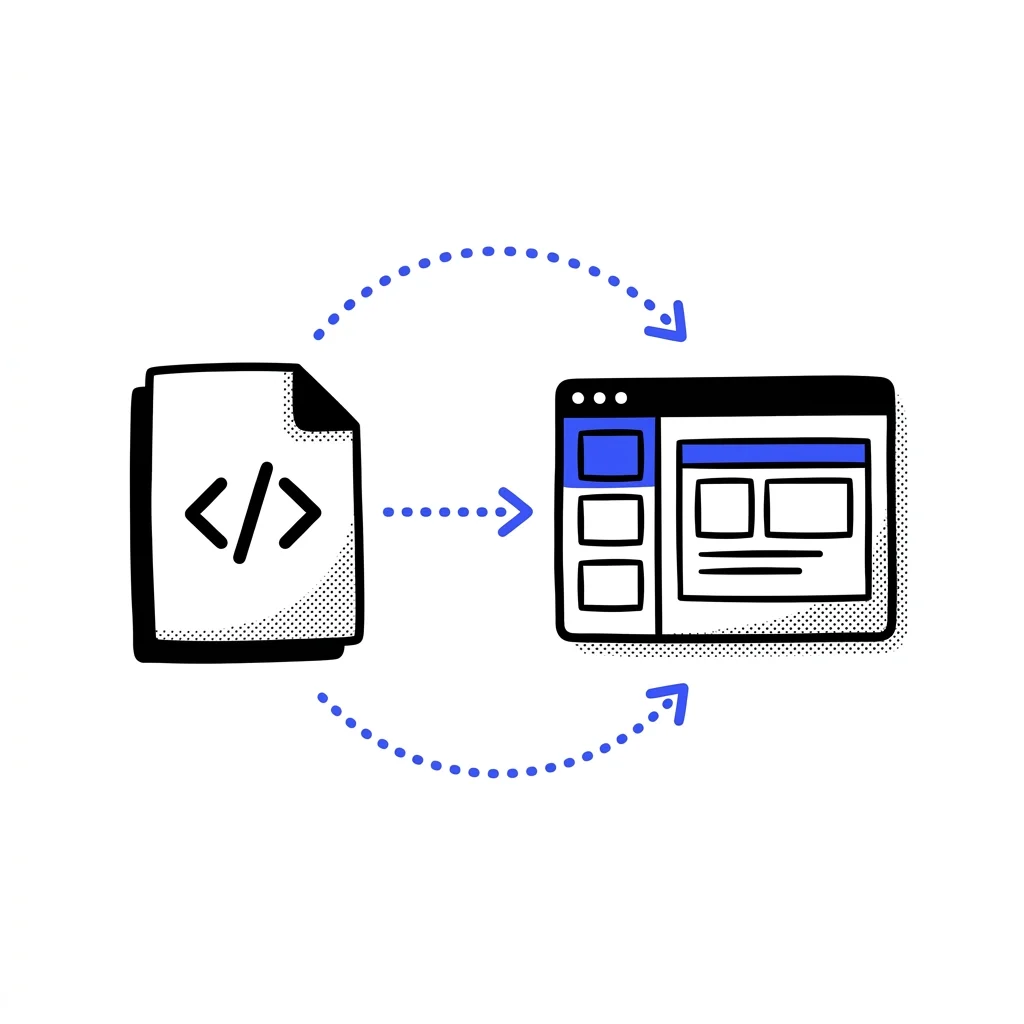
In the modern digital workflow, we are constantly moving information between different formats. Developers build web pages, data analysts output HTML reports, and AI agents and tools (like Claude Code or codex) generate HTML files or code blocks to visualize data and UI layouts.
However, sharing HTML files directly with non-technical stakeholders or clients makes it difficult for them to perform edits, and standard presentation slide decks (PPT) remain the expected format for formal business and academic reviews.
Manually recreating a webpage in PowerPoint—copying text, downloading images, drawing shapes, and recreating tables—is an unproductive use of your time.
Fortunately, you can automate this transition. By using a professional online converter .html to ppt, you can convert static code and active web designs into standard presentation files in seconds.
In this step-by-step tutorial, we will show you exactly how to convert your .html files and raw code into fully editable PowerPoint (.pptx) slides, explain why professional converters are superior to basic tools, and provide best practices for preparing your code.
Why Use an Online Converter for .HTML to PPT?
Before we begin the step-by-step workflow, it is important to understand what a professional conversion engine does under the hood.
Many users assume that HTML-to-PPT conversion is just “screenshotting” the webpage and pasting those screenshots onto slides. However, a basic screenshot-based conversion has several disadvantages:
- No Text Editability: You cannot double-click to correct a typo or change a heading. The slides are flat, static images.
- Fixed Dimensions: If the webpage layout was designed for a wide desktop monitor, the screenshot will look tiny and unreadable when fitted onto a standard 16:9 slideshow page.
- Data Loss: You cannot extract or copy data out of tables, charts, and lists.
A professional converter like DeckFlow reconstructs the webpage elements natively rather than taking screenshots. It ensures that layouts, colors, emojis, special characters, and tables are preserved perfectly without corruption. The resulting PowerPoint presentation is fully editable:
- Text, shapes, and tables are native PowerPoint objects you can edit with one click.
- LaTeX equations are preserved losslessly as editable Office Math objects, and charts link directly to Excel for easy data updates.
Step-by-Step Guide to Converting HTML to PPT
To convert your HTML document or code block without installing any desktop software, follow this detailed guide:
Step 1: Open the Converter Tool
First, open your web browser and navigate to the dedicated tool page: Go to DeckFlow’s HTML to PPTX Converter.
Step 2: Choose Your Input Method
DeckFlow offers two input options, which is helpful for both developers and AI users:
Option A: Upload a Local File
If you have a saved .html file (such as an AI-generated HTML presentation, webpage report, or static document outline) on your computer:
- Click the Upload File area.
- Select your
.htmlfile from your local directory, or simply drag and drop the file directly into the designated drop zone.
Option B: Paste Raw Code Directly
If you are working with an AI agent or tool that generated an HTML page or code block, you do not need to download the file first:
- Copy the raw HTML code.
- Paste the code directly into the text input area on the DeckFlow tool page.
Step 3: Run the Converter
Once your file is uploaded or your code is pasted:
- Click the Submit button.
- DeckFlow will automatically begin processing your conversion in the background. Wait briefly for the task to complete.
Step 4: Download Your PPTX File
- When the conversion is complete, a Download button will appear.
- Click the download button to retrieve your compressed ZIP archive. Once extracted, you will find the
.pptxpresentation inside.
Step 5: Open and Edit
- Open the downloaded file in Microsoft PowerPoint, Google Slides, or Keynote.
- Double-click any element to edit text, resize shapes, or adjust table rows.
Why Choose DeckFlow for Your HTML-to-PPT Workflows?
While there are many basic online converter tools on the web, they are often designed for simple file sharing and destroy layout structures.
DeckFlow’s standalone tool is optimized for professional presentations:
- Dual Input Processing: The ability to paste raw code directly saves developers and AI researchers from the constant loop of saving local files before uploading.
- Data Security and Privacy: Professional files contain sensitive data. DeckFlow handles your conversions securely and deletes all uploaded files and generated slides from the server automatically.
- Fidelity Preservation: The converter translates HTML headings (
<h1>,<h2>,<h3>) into clean slide titles and bulleted lists (<ul>,<li>) into structured layouts, preventing text blocks from overlapping. - Editable Tables and Data: Web data tables are rebuilt as standard, editable PowerPoint table grids rather than static screenshots, allowing you to modify cells locally.
Conclusion
Converting webpage code into professional presentation slides does not require manual reconstruction. By utilizing a semantic online converter .html to ppt like DeckFlow, you can transform files and code into editable slides in seconds.
Whether you are presenting an AI-generated prototype or converting a research report, this workflow saves preparation time while maintaining a clean layout structure.
Related Guides
For a broader guide to converting HTML into presentation slides, read How to Convert HTML to PPT Online. To compare what matters in a fully editable result, see The Best HTML to PPTX Converter.