
How to Easily Convert HTML to PPT Online (Free Guide)
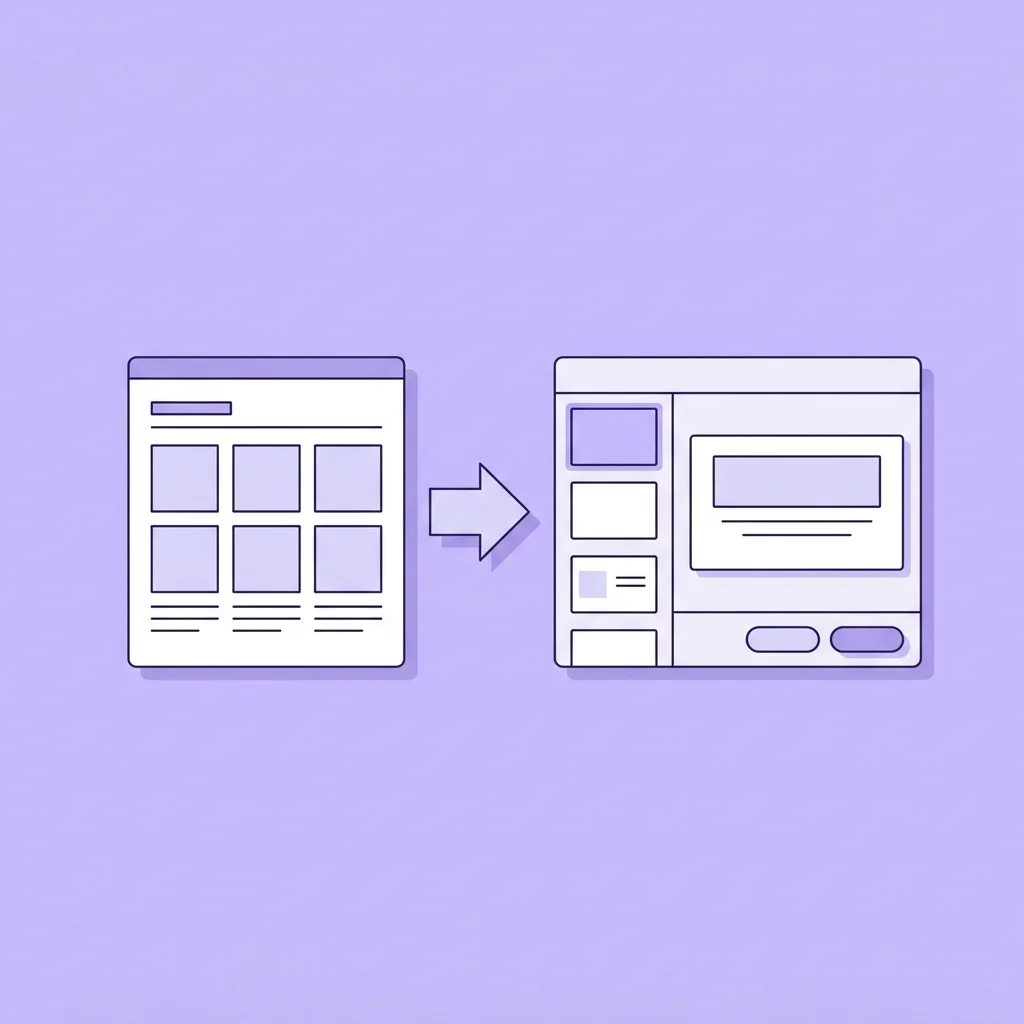
Modern professionals encounter high-value information on web pages every day. Whether it is an online marketing report, a product roadmap on a project management dashboard, a designed landing page, or a styled document generated by an AI assistant, web-native content is highly practical for reading.
However, when it is time to present these web insights to your team, stakeholders, or clients, you cannot simply show them a browser tab. Business meetings expect structured, offline slide decks.
Recreating web layouts in PowerPoint manually by copying text and taking screenshots is slow and unproductive.
To solve this, you can use an online converter to automate the process. But before you upload your files, you need to know how to avoid common conversion errors that ruin slide layouts.
In this guide, we will discuss the challenges of web-to-slide conversions, expose the pitfalls of generic online tools, and show you how to convert your HTML assets into fully editable PowerPoint (.pptx) slides for free.
Why Do We Need to Convert HTML to PPT?
The demand for web-to-presentation conversion has increased due to two main trends:
1. Web-First Business Reporting
Modern software tools—from CRM systems to project trackers—generate visual summaries, charts, and reports directly in the browser. Teams need to bring these summaries into corporate slide decks weekly to report progress.
2. AI-Generated Visual Documents
AI agents and tools frequently generate styled web prototypes, custom checklists, flowcharts, or summaries as standalone HTML files. Converting these interactive assets into slides is the fastest way to edit them locally and present them in meetings.
If you try to move this content manually, you waste hours adjusting text boxes, cropping images, and recreating grid alignments. A dedicated online converter is the best way to speed up this process.
Understanding the Formats: HTML vs. PPTX
Before exploring conversion methods, it is helpful to understand how these two formats differ structurally:
- What is an HTML File? HTML (HyperText Markup Language) is the standard markup language for web documents. It is a text-based format that uses tags to structure text, links, tables, and media. In modern workflows, AI coding assistants use HTML to export interactive prototypes, charts, or document dashboards.
- What is a PPTX File? PPTX is the default XML-based presentation format introduced by Microsoft. Unlike old binary
.pptfiles, a.pptxfile is actually a compressed ZIP archive containing XML files that describe layouts, text styles, and graphic positions, along with a folder for images and media.
Can You Convert HTML to PPTX with Python or AI Agents?
If you have programming experience, you might wonder if you can write a custom converter. The answer is yes, but it is highly complex:
Using Python for Conversion
Developers often use Python to automate file processing. To convert HTML to PPTX, a script typically utilizes:
- Parsing Libraries: Libraries like
BeautifulSouporlxmlto read the HTML structure and extract headings, paragraphs, and tables. - Presentation Libraries:
python-pptxto programmatically build a PowerPoint file and populate it with the extracted content.
However, writing a Python script that preserves CSS styling, margins, colors, and table alignments requires complex layout algorithms. Without extensive custom logic, a basic Python script will output misaligned text blocks and unstyled shapes.
How AI Agents and Online Tools Handle Conversion
Many generic online converters and AI agents (such as Claude Code, ChatGPT, or codex) also use Python scripts under the hood to handle file conversions. When you ask an AI agent to convert HTML to PPTX, the agent usually writes a quick Python script (often converting HTML to PDF first, and then converting the PDF to PPTX) and executes it in its sandboxed environment.
While this method works for plain text, it often fails for styled layouts. The agent’s generated code cannot parse complex CSS or vector assets, resulting in flat, uneditable screenshots pasted onto slides, missing images, or broken scripts.
The Pitfalls of Generic Online HTML-to-PPT Converters
If you search for a free converter on the web, you will find hundreds of basic tools. However, most of these tools use outdated conversion scripts that result in layout failures:
- Static Screenshot Paste: Many free tools simply take a picture of your HTML page, split the picture into blocks, and paste them onto blank slides. You cannot double-click the text to edit typos, change colors, or adjust font sizes.
- Distorted Dimensions and Ratios: Web pages are designed to scroll vertically, whereas presentations use a fixed horizontal aspect ratio (usually 16:9). Generic tools often stretch or squeeze elements to fit the page, causing images and logos to look warped.
- Missing Backgrounds and Theme Fills: If your HTML file uses custom CSS gradients, web textures, or background images, generic tools will fail to render them, outputting plain white backgrounds instead.
- Broken Data Tables: Tables are complex structures. Basic converters often drop table borders, causing text cells to overlap and making numerical data unreadable.
- Missing Emojis and Special Characters: Modern web copy uses emojis, vector icons, and symbols. Standard conversion scripts do not support these character sets, replacing them with empty boxes or error symbols like
[?].
Reconstructing Web Pages Natively with DeckFlow
To create professional slide decks, you need a converter that goes beyond basic screenshotting.
DeckFlow’s standalone converter is designed to preserve both layout structure and editability:
- Editable Text and Native Shapes: The engine parses the HTML structure, transforming text blocks into editable PowerPoint text containers and styled shapes into native vector objects.
- Precise Color and Gradient Mapping: DeckFlow matches CSS colors, gradients, and transparency values, ensuring your slides look visually identical to the original web page.
- Lossless Table Preservation: The converter identifies table grids, generating native, editable PowerPoint tables with correct cell padding and alignment.
- Emoji and Vector Symbol Support: Full Unicode and vector asset support ensures emojis, special characters, and icons transfer cleanly without corruption.
Step-by-Step Guide: How to Convert HTML to PPT Online for Free
Converting your documents is fast and requires no software installations:
- Open your web browser and go to DeckFlow’s HTML to PPTX Converter.
- Select your input method:
- Upload File: Drag and drop your
.htmlfile directly into the upload area. - Paste Code: Copy the raw HTML code from your editor or AI chat window and paste it directly into the text box.
- Upload File: Drag and drop your
- Click the Submit button to start the conversion.
- Once completed, click the download button to retrieve your compressed ZIP archive. Extract the folder to access your editable
.pptxslides.
After downloading, you can open the file in PowerPoint, Google Slides, or Keynote to add transition animations, apply company branding, and make final edits.
Best Practices for HTML to PPT Conversion
To ensure your slides look perfect, follow these simple formatting tips before converting:
- Clean Up Code: Remove unnecessary navigation bars, site footers, or interactive scripts (like JavaScript widgets) from your HTML code, as these elements are not useful on slides.
- Use Standard Margins: Set clear spacing between headings and paragraphs in your layout to prevent overlapping text containers.
- Keep Tables Structured: Ensure your tables use standard HTML table elements (
<table>,<tr>,<td>) rather than absolute CSS divisions, as this helps the converter map the columns correctly.
By using the right tools and layout practices, you can automate your presentation design, present your data cleanly, and focus your time on delivering your message.
Related Guides
Need a closer look at editable output, tables, and professional reporting use cases? Read The Best HTML to PPTX Converter. For a shorter operation guide, see How to Use an Online Converter for .HTML to PPT.