How to Combine Multiple Word Documents into One PDF
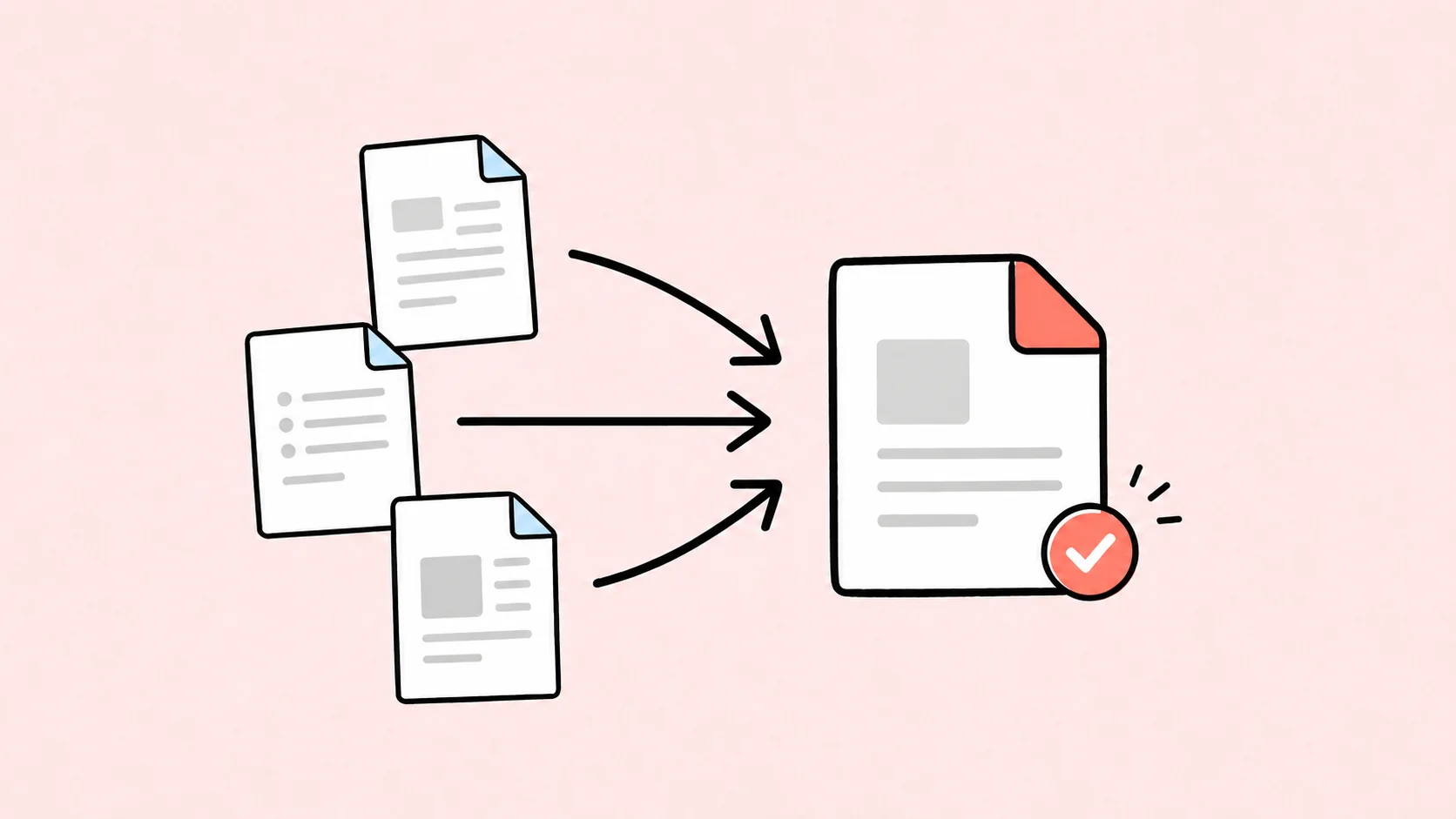
The most reliable way to combine multiple Word documents into one PDF is to insert the source files into a new master Word document, arrange the sections, and export that master file as a single PDF. If the documents must keep their layouts independent, convert each file to PDF first and merge the PDFs instead.
The right workflow depends on whether you still need to edit the combined content and how different the source documents are. Whichever method you choose, set the file order before merging and inspect the final PDF page by page.
Choose Whether to Merge Before or After Conversion
| Situation | Best workflow | Why |
|---|---|---|
| The Word files use similar styles and page settings | Combine in Word, then export once | Creates one editable master document and one conversion step |
| You need continuous page numbers or one table of contents | Combine in Word first | Word can update fields across the master file |
| Each file has a distinct design, header, or page size | Convert separately, then merge PDFs | Reduces style conflicts and unexpected reflow |
| The source files are approved and should not be edited | Convert separately, then merge PDFs | Keeps the final assembly focused on page order |
| Microsoft Word is unavailable | Convert each DOC/DOCX online, then use a PDF merger | Separates conversion from merging |
Combining before conversion gives you more control over text, page numbering, and navigation. Combining after conversion is often safer for contracts, reports, appendices, and documents created by different people or applications.
Method 1: Insert Multiple Word Documents into One Master File
Desktop Microsoft Word can insert the contents of an existing Word file into another document. Microsoft’s current Insert a document in Word guide uses the Text from File command.
- Put copies of all source files in one folder so the originals remain untouched.
- Rename the copies with a clear sequence, such as
01-cover.docx,02-report.docx, and03-appendix.docx. - Open a new blank document in desktop Word. This will be the master file.
- Set the page size, margins, and default styles that should apply to the combined document.
- Click where the first file should begin.
- Go to Insert, open the arrow next to Object, and choose Text from File.
- Select the first Word file and insert it.
- Add an appropriate page or section break at the end of the inserted content.
- Repeat the process for every remaining file in the required order.
- Save the master document under a new name before making further changes.
Insert one file at a time when sequence matters. Even if your file picker allows multiple selections, inserting individually makes the order easier to verify and gives you a chance to add the correct break between documents.
Do not use Insert > Object > Create from File for this task. That command embeds or links a file as an object; it does not place all of its editable pages into the master document in the same way as Text from File.
Reorder Sections and Preserve Page Breaks
Turn on Home > Show/Hide ¶ before reorganizing the master file. The visible formatting marks make page breaks, section breaks, extra paragraphs, and empty pages easier to diagnose.
Use a page break when the next document only needs to start on a new page. Use a Next Page section break when the next part needs its own header, footer, page numbering, orientation, columns, or margins. Microsoft specifically recommends inserting source content in a new section when its header and footer need to remain limited to those pages.
To change the order, move complete sections rather than dragging arbitrary selections across break markers. In long documents, use the Navigation pane to move content by heading when the heading structure is consistent. After each move, check the boundary between files for:
- A missing or duplicated blank page
- A heading stranded at the bottom of a page
- A section break that changed from odd or even page to next page
- An image, table, or text box that moved after insertion
- A header or footer unexpectedly linked to the previous section
Save a new version after major rearrangements. A name such as combined-v2.docx is easier to recover than repeatedly overwriting the only master file.
Export the Combined Word File as One PDF
Once the master document is in the correct order, update its fields before exporting. Refresh the table of contents, captions, cross-references, dates, and page numbers. Decide whether comments and tracked changes should be included, then inspect the document in Print Preview.
On Word for Windows:
- Select File > Save As and choose PDF, or use File > Export > Create PDF/XPS.
- Choose Standard when print quality matters.
- Open Options to confirm the page range, bookmarks, document properties, accessibility tags, and markup settings.
- Save the PDF and open it immediately.
On Word for Mac:
- Select File > Save As or Save a Copy.
- Choose PDF under File Format.
- Name the file, choose a destination, and save it.
Microsoft’s official Office PDF export guide documents both workflows and the additional PDF options available in Word for Windows.
Method 2: Convert Each Word File, Then Merge the PDFs
Use this workflow when the source documents have different templates, fonts, page sizes, or approval histories. Each file is converted independently, so its layout does not have to coexist inside one Word style system.
- Finalize every Word document separately.
- Rename the files in the intended order.
- Convert each DOC or DOCX file to PDF with Word’s native export or another appropriate converter.
- Open every PDF and confirm that its page count and formatting are correct.
- Merge the PDFs with a PDF tool that lets you control file and page order.
- Save the combined PDF under a new name and review it again.
If Word is not installed, DeckFlow Word to PDF can convert individual .doc and .docx files in a browser. It does not merge those outputs into one PDF, so you still need the separate PDF-merging step.
On a Mac, open the PDFs in Preview and choose View > Thumbnails in each window. Drag the page thumbnails—or an entire PDF from Finder—into the sidebar of the destination PDF, then drag the thumbnails into the correct order. Apple’s Preview instructions warn that changes may save automatically, so duplicate important originals first.
Adobe Acrobat can also combine Word files and PDFs. Choose Menu > Combine files on Windows or File > Combine files on macOS, add the files, arrange their thumbnails, and select Combine. Adobe’s Combine files guide confirms that Word documents can be added directly, which may let Acrobat handle conversion and merging in one workflow.
Handle Headers, Footers, Page Numbers, and Styles
The page boundaries are where most Word merges go wrong. Review these elements deliberately:
- Headers and footers: Double-click each section’s header and footer. Turn Link to Previous off where content must change, and check first-page and odd/even-page settings.
- Page numbers: Decide whether numbering should continue across the entire PDF or restart for appendices. Use Format Page Numbers in each relevant section instead of typing numbers manually.
- Styles: Documents from different authors may use identically named styles with different formatting. Check headings, body text, captions, lists, and table styles after insertion.
- Page size and orientation: Use section breaks around landscape pages or sections that switch between A4 and Letter. Confirm that the PDF did not crop content or add unexpected scaling.
- Fonts: Install required fonts before export and watch for changed line breaks or page counts. Missing fonts can shift content even when the merge itself succeeds.
- Tracked changes and comments: Accept, reject, hide, or intentionally include markup before export. Check the PDF for internal comments or deleted text that should not be shared.
If preserving each document’s exact appearance matters more than continuous editing, use the separate-PDF workflow. For more layout checks, see Word to PDF with the Same Fonts and Formatting.
Check Bookmarks and Document Order
A combined PDF is only useful when readers can navigate it. Before delivery, verify:
- The files and pages appear in the intended sequence.
- No cover, signature page, appendix, or blank separator is missing or duplicated.
- The total page count matches the sum you expected.
- Page numbers in the content agree with PDF page positions where required.
- The table of contents and internal cross-references go to the correct pages.
- PDF bookmarks are present and correctly nested if you exported them from Word headings.
- Web links, email links, footnotes, and endnotes still work.
- Headers, footers, margins, orientation, and image placement remain consistent at every file boundary.
For a high-stakes document, compare the final PDF with the source files side by side and open it in a second PDF viewer. A successful merge only proves that one file was created; it does not prove that the order, formatting, or navigation is correct.
Frequently Asked Questions
How do I combine two Word documents into one PDF?
Create a blank master document, insert the first file with Insert > Object > Text from File, add a page or section break, and insert the second file. Review the boundary, then export the master document as PDF. Alternatively, convert both documents separately and merge the two PDFs.
Can I append a Word document to an existing PDF?
Yes, but Word’s PDF export does not append pages directly to an existing PDF. Convert the Word document to PDF first, then use Preview, Acrobat, or another trusted PDF organizer to insert its pages into the existing PDF.
Can I merge many Word files at once?
Yes. Acrobat can accept multiple Word files in its Combine files workflow. In Word, insert the documents into a master file one at a time for better control over order and section breaks. For repeatable high-volume work, use an approved document automation process and validate every output.
Why did the formatting change after I merged the Word documents?
Common causes include conflicting styles, missing fonts, linked headers and footers, different page sizes, and floating objects. If correcting those conflicts in a master Word file is impractical, convert the source files separately and merge the PDFs instead.
Will combining Word documents create one editable file?
The master-Word method creates one editable .docx plus one PDF. The separate-PDF method creates a single delivery file but does not create a unified editable Word source. Keep the original Word documents in either case.
Related Reading
- Start with the broader conversion guide: How to Save a Word Document as a PDF: 5 Reliable Methods.
- Prevent font substitutions and page shifts: Word to PDF with the Same Fonts and Formatting.
- Convert individual DOC or DOCX files online: DeckFlow Word to PDF.