Word to PDF with the Same Fonts and Formatting: How to Prevent Layout Changes
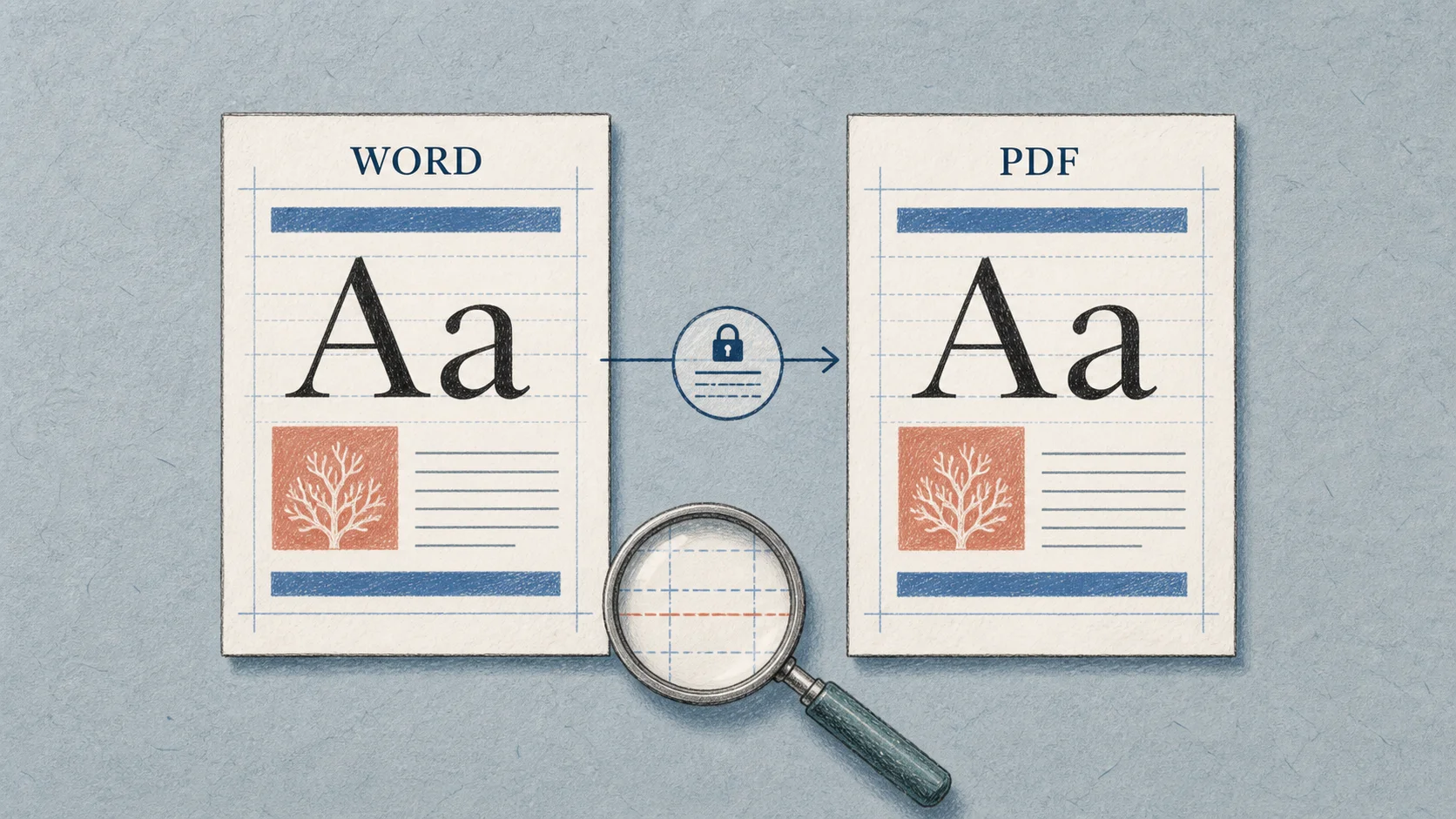
To convert Word to PDF with the same fonts and formatting, export the document from a computer that has the required fonts installed, embed eligible custom fonts in the Word file, use a layout-aware conversion method, and inspect the PDF before sending it. No converter can perfectly reproduce a font that is unavailable or legally restricted from embedding.
The safest workflow is therefore prepare, convert, compare, and correct. The checklist below prevents most cases of substituted fonts, changed line breaks, shifted page numbers, moved images, and broken tables.
Quick Preflight Checklist
Before converting an important document, confirm the following:
- Every custom font is installed and displays correctly in Word.
- Bold, italic, and other required font styles are available, not simulated.
- Eligible fonts are embedded in the Word file when the document will be converted elsewhere.
- The page size, orientation, margins, columns, and section breaks are correct.
- The table of contents, fields, captions, cross-references, and page numbers are updated.
- Tracked changes and comments are either accepted, hidden, or intentionally included.
- The document has been checked in Print Preview.
If you only need the basic conversion steps, start with How to Save a Word Document as a PDF. The rest of this guide focuses on preserving appearance and repairing formatting problems.
Why Fonts and Layouts Change During Conversion
A Word page is not a fixed image. Word calculates line wrapping, paragraph height, table size, and page breaks from the font metrics and formatting available in the current environment. A small difference can move one word to the next line, which can push a paragraph, table, or heading onto another page.
Common causes include:
- The font is missing. The conversion system substitutes another typeface with different character widths and spacing.
- Only part of the font family is installed. Regular may be available while bold, italic, or a specific weight is missing.
- The font cannot be embedded. Font creators can restrict embedding through the font license.
- The conversion runs in another environment. A browser service, another computer, or a different office suite may not have the same fonts or layout engine.
- The export method changes page settings. Print-to-PDF workflows can apply a different paper size, scaling rule, or printer margin.
- Objects are positioned relative to text. Floating images, text boxes, shapes, and anchored elements can move when surrounding text reflows.
- Fields or markup change the printable content. Comments, tracked changes, updated fields, or a refreshed table of contents can alter pagination.
The visible problem may appear to be an image or page-number error, but the first cause is often a substituted font several paragraphs earlier.
Check Font Availability and Embedding Before Export
First, open the document on the computer that will create the PDF. Check headings, body text, symbols, equations, tables, headers, and footers for unexpected typefaces or empty square characters.
In Word for Windows, you can embed eligible fonts in the document:
- Select File > Options > Save.
- Under Preserve fidelity when sharing this document, enable Embed fonts in the file.
- Save the document again before converting it.
Microsoft’s font embedding guide explains that embedded custom fonts can help online PDF conversion avoid substitution. Word for Microsoft 365 for Mac also supports font embedding.
Embedding has limits. Not every font permits it, and some fonts may allow viewing and printing but restrict editing or installation. Microsoft recommends OpenType (.otf) or TrueType (.ttf) fonts where possible. If a font is marked non-embeddable, choose a licensed alternative or perform the conversion on a system where that font is installed.
Embedding also increases the Word file size. The option to embed only the characters used can reduce size, but it is less suitable if another person needs to edit the document and add new characters later.
Use DeckFlow Word to PDF for DOC and DOCX Conversion
DeckFlow Word to PDF provides a browser-based workflow for .doc and .docx files. It is useful when Word is not installed, when you are working across devices, or when you want a direct conversion route without changing the source document.
- Open the DeckFlow Word to PDF tool.
- Upload the
.docor.docxfile. - Let the conversion process automatically.
- Download the completed ZIP archive from the task list.
- Extract the archive to get the PDF.
- Compare the PDF with the source document.
DeckFlow’s Word converter is designed to maintain document layout and font display, including spacing and page numbers. That does not remove the need for review: an unavailable custom font, an unusual embedded object, or a document created with a different layout engine can still require attention.
For a meaningful check, test the actual document you plan to deliver. A one-page sample using only common fonts cannot predict how a long report with custom typography, tables, equations, and floating images will behave.
Use Microsoft Word’s Native PDF Export
If the document looks correct in the desktop Word app and all required fonts are available there, native export is usually the best-controlled option.
On Windows:
- Select File > Save As and choose PDF, or select File > Export > Create PDF/XPS.
- Choose Standard when print quality and visual fidelity matter.
- Open Options to confirm the page range, markup, bookmarks, and document properties.
- Save the PDF and open it immediately for review.
Microsoft’s PDF export documentation describes a Bitmap text when fonts may not be embedded option. When an eligible font cannot be embedded, this can preserve the visual appearance by rendering affected text as an image. Use it carefully because image-based text may not behave like normal searchable, selectable, or accessible text.
On Mac, select File > Save As, choose PDF under File Format, and export. Use Word’s native PDF command instead of the system print dialog when you need Word-specific options such as document tags or bookmarks.
Check Page Size, Margins, Line Breaks, and Images
Fonts are only one part of layout fidelity. Check these elements before and after conversion:
- Page size and orientation: Confirm A4 versus Letter, portrait versus landscape, and any section-specific changes.
- Margins and columns: Look for text that moves close to an edge or jumps between columns.
- Line and page breaks: Use intentional page breaks instead of repeated blank paragraphs. Check widows, orphans, and headings left alone at the bottom of a page.
- Tables: Review column widths, row splitting, repeated header rows, merged cells, and content that extends beyond a cell.
- Images and shapes: Check crop, rotation, text wrapping, anchoring, captions, and whether floating objects overlap body text.
- Headers and footers: Confirm logos, dates, page numbers, and section-specific content.
- Equations and symbols: Inspect superscripts, subscripts, mathematical operators, accented characters, and non-Latin scripts.
If pagination is tightly controlled, avoid making last-minute font or margin changes after the table of contents has been updated.
Compare the PDF with the Source Document
Do not review only the first page. Open Word and the PDF side by side, then check:
- The total page count and the first content on every page.
- Heading fonts, body fonts, emphasis, and special characters.
- Line endings around narrow columns, callout boxes, and table cells.
- Tables, charts, equations, images, captions, headers, and footers.
- Hyperlinks, bookmarks, table-of-contents entries, and internal references.
- Comments or tracked changes that should not be visible.
If Adobe Acrobat is available, open File > Properties > Fonts to see which fonts are embedded or embedded as subsets. Adobe’s PDF font settings overview explains that embedding fonts helps maintain appearance across systems, while licensing restrictions can prevent embedding.
For a high-stakes report, also open the PDF in a second viewer or on another device. This helps distinguish a real file problem from a viewer-specific rendering issue.
Fix Substituted Fonts and Shifted Pagination
When the PDF does not match the Word file, fix the cause in the source document and export again:
- Identify the first page where the layout changes.
- Check the font used immediately before that point, including its weight and style.
- Install the missing font from a trusted, properly licensed source, then restart Word.
- If embedding is permitted, embed the font and save the Word file again.
- If embedding is restricted, replace it with an embeddable alternative and recheck all page breaks.
- Confirm the page size, margins, printer scaling, and section settings.
- Move fragile floating objects to a more stable anchor or use In Line with Text when appropriate.
- Update fields and export a new PDF instead of editing the incorrect PDF directly.
For recurring documents, standardize a small set of approved fonts and keep a test page containing every heading level, table style, symbol, equation, and image treatment. Converting that page before a major delivery can reveal environment changes early.
Frequently Asked Questions
Can every custom font be embedded in a PDF?
No. Font licensing determines whether embedding is allowed. If Word cannot embed a font, install and export from a licensed environment, replace the font, or use a visual fallback such as bitmap text when appropriate.
Why do equations change after Word-to-PDF conversion?
Equations may rely on specialized math fonts, embedded objects, or features that another conversion engine interprets differently. Check math fonts, baseline alignment, equation numbering, and line wrapping in the final PDF.
How do I stop Word tables from moving in the PDF?
Check fixed versus automatic column widths, row splitting, cell margins, paragraph spacing inside cells, and whether the table exceeds the printable page width. Font substitution inside a cell can also widen text and change the table layout.
Will hyperlinks still work if the formatting is preserved?
Usually, but visual fidelity does not guarantee link behavior. Test web links, email links, table-of-contents entries, cross-references, and links placed inside text boxes or headers.
Can comments and tracked changes affect the PDF layout?
Yes. Printing markup can add balloons or change the printable area, while accepting changes can reflow the text. Decide what should appear, update the document, and check the export options before creating the final PDF.
Related Reading
- For all five conversion methods, read How to Save a Word Document as a PDF.
- For a direct browser workflow, use DeckFlow Word to PDF.