How to Save a Word Document as a PDF: 5 Reliable Methods
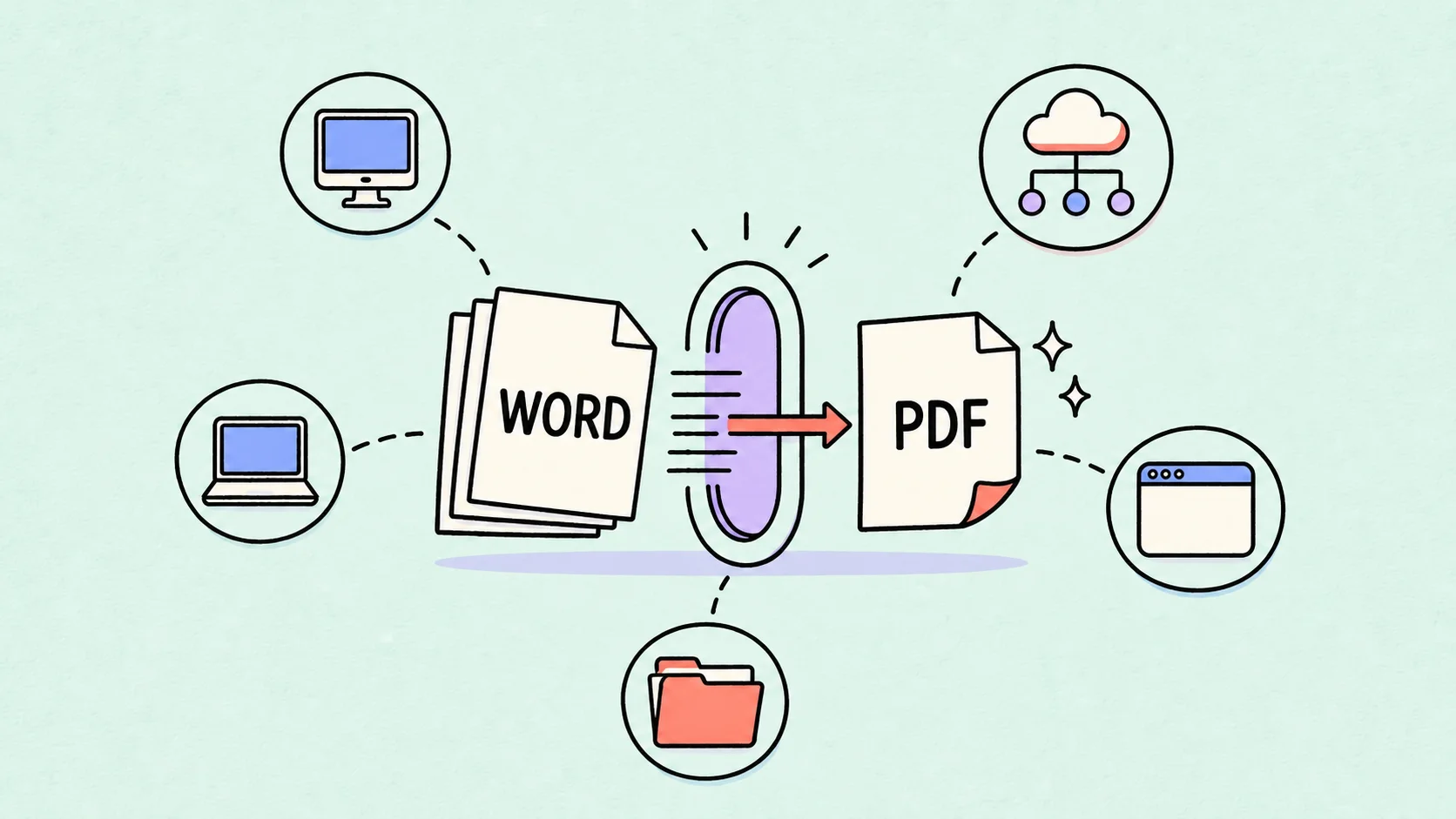
The most reliable way to save a Word document as a PDF is to use Word’s built-in Save As or Export command. It creates a separate PDF for sharing while keeping the original .doc or .docx file editable.
If Microsoft Word is not installed, you can convert the file in a browser with DeckFlow, download a PDF from Word Online, or export it from OpenOffice. The five methods below cover Windows, Mac, browser-based workflows, and a free desktop alternative.
Quick Answer: Which Method Should You Use?
| Method | Best for | Internet required? |
|---|---|---|
| Word for Windows | Maximum control on a Windows PC | No |
| Word for Mac | Native export on macOS | No |
| DeckFlow Word to PDF | Converting a .doc or .docx without installing Word | Yes |
| Word Online | Files already stored in OneDrive or SharePoint | Yes |
| OpenOffice Writer | A free desktop alternative | No |
Before converting an important document, save the editable Word file, update its table of contents and page numbers, and check the print preview. After conversion, open the PDF and inspect every page before sending it.
Method 1: Save as PDF in Microsoft Word for Windows
This is the best default method when Word is installed on your Windows computer.
- Open the document in Microsoft Word.
- Select File > Save As or File > Save a Copy.
- Choose the folder where you want to store the PDF.
- Open the Save as type list and select PDF (*.pdf).
- Enter a file name that is different from the editable Word file.
- Choose Standard for printing and high-quality viewing, or Minimum size when a smaller file matters more.
- Select Save.
You can also select File > Export > Create PDF/XPS Document > Create PDF/XPS, choose the output settings, and select Publish. Microsoft documents both routes in its official PDF export guide.
Use Options before saving if you need to export only certain pages, include document properties, create bookmarks from headings, or control whether markup appears. The labels can vary slightly between Word versions, but the workflow is the same: choose PDF as the output format, set the range and quality, then save a separate copy.
Method 2: Export Word to PDF on Mac
Word for Mac also has a native PDF export workflow:
- Open the Word document.
- Select File > Save As.
- Enter a name for the PDF and choose a destination.
- In File Format, select PDF.
- Select Export.
Keep the .docx file and the PDF under different names. The Word document remains your editable source; the PDF is the delivery copy. Microsoft’s Word for Mac instructions also describe a direct email route through File > Share > Send PDF when that command is available in your version.
If PDF does not appear under Save As, use macOS printing as a fallback: select File > Print, open the PDF menu in the print dialog, and choose Save as PDF. Native Word export is preferable when you need Word-specific options such as bookmarks or document tags.
Method 3: Convert DOC or DOCX with DeckFlow Word to PDF
Use a browser-based converter when Word is unavailable, you are switching between operating systems, or you need a direct DOCX-to-PDF workflow without installing software.
- Open DeckFlow Word to PDF.
- Drag your Word file into the upload area, or click to select it.
- Let DeckFlow process the document automatically.
- Download the finished ZIP archive from the task list.
- Extract the archive to get the converted PDF.
- Open the PDF and check its fonts, spacing, page numbers, tables, and images.
DeckFlow accepts both .doc and .docx files. Because the conversion runs in a browser, it is a practical option on Windows or Mac when you do not have access to the desktop Word app.
For confidential, regulated, or client-restricted documents, follow your organization’s file-handling policy before uploading anything to an online service. A local Word or OpenOffice export may be the appropriate route when external uploads are not permitted.
Method 4: Download a PDF from Word Online
Word Online is convenient when the document is already stored in OneDrive or SharePoint.
- Open the document in Word for the web.
- Select File > Export.
- Choose Download as PDF to exclude comments, or Download as PDF with comments when reviewers need to see them.
- Select Download in the confirmation dialog.
- Open the downloaded file from your browser’s download location.
Microsoft’s current Word Online export guide confirms both PDF download choices. If the browser version does not show Export, use File > Print, choose Save as PDF in the system print dialog, and save the file locally.
The web app is useful for quick access, but desktop Word offers more control over bookmarks, page ranges, print quality, and advanced output settings. Custom fonts may also be substituted if they are not available to the online service, so inspect brand documents and carefully designed layouts after export.
Method 5: Save as PDF in OpenOffice Writer
Apache OpenOffice Writer can open many Word files and export them as PDFs without Microsoft Word.
- Open the
.docor.docxfile in OpenOffice Writer. - Review page breaks, fonts, tables, headers, and images before exporting.
- Select File > Export as PDF.
- Choose the page range, image settings, links, and security options you need.
- Select Export, choose the destination and file name, then save the PDF.
For a faster workflow, use the Export Directly as PDF toolbar icon. Apache’s OpenOffice PDF documentation notes that this shortcut uses the default settings, so it does not let you choose a page range or compression options first.
OpenOffice is a useful free alternative, but a complex Word document can reflow when opened in a different editor. Always compare the exported PDF against the original, especially when the document uses custom fonts, floating text boxes, tracked changes, equations, or tightly controlled pagination.
How to Send a Word Document as a PDF
The safest workflow is to create and review the PDF first, then attach that PDF to your email, chat, form, or client portal.
- Export the Word document with one of the methods above.
- Open the PDF and confirm that all pages are present.
- Check the file name and remove labels such as
final-finalor internal version notes. - Attach the
.pdffile—not the.docor.docxsource. - Keep the original Word file in case you need to make revisions later.
On Word for Mac, File > Share > Send PDF can create a PDF and attach it to a new email message. Sending the reviewed file manually is still the more predictable option when you use webmail, a team messenger, or an upload portal.
Remember that PDF is a delivery format, not an absolute editing lock. A recipient may still be able to copy text, add annotations, or edit the file with PDF software. Use access controls or a trusted secure-sharing system when the document requires stronger protection.
Troubleshooting Missing Save as PDF Options
If Word does not show PDF under Save As, try these fixes:
- Look under Export. On Windows, the command may appear at File > Export > Create PDF/XPS instead of Save As.
- Use Print to PDF. Windows and macOS both provide a PDF destination in the print dialog. This is a useful fallback, though it may offer fewer document-structure options.
- Switch from preview to editing mode. A file opened in a browser preview, protected view, or view-only state may not show the same commands as an editable document.
- Check the output folder. If Word can create the PDF but cannot save it, try a local folder with a short file name and confirm that you have permission to write there.
- Review fonts and page setup. Install required fonts, confirm the paper size, and check margins and page breaks before exporting. Font substitution is a common cause of shifted lines and pages.
- Update fields before export. Refresh the table of contents, cross-references, captions, dates, and page numbers so the PDF does not contain stale information.
- Turn markup on or off intentionally. Decide whether tracked changes and comments should appear, then check the relevant print or export options.
- Try another method. If a local Office installation is damaged or unavailable, use Word Online, OpenOffice, or DeckFlow Word to PDF.
When the PDF opens but looks wrong, compare it page by page with the source. Check fonts, tables, image cropping, headers, footers, links, footnotes, and page count. Do not assume a successful download means a correct conversion.
Frequently Asked Questions
What is the difference between DOC and DOCX when saving as PDF?
.doc is the older binary Word format, while .docx is the newer XML-based format used by modern Word versions. Either can be exported to PDF. DeckFlow accepts both formats, but saving an old .doc as .docx first may improve compatibility with newer Word features.
Does saving a Word file as PDF change the original document?
No, as long as you save or export a separate PDF copy. Keep the original Word document for editing, and give the PDF a distinct file name so the two versions are easy to identify.
Will hyperlinks still work in the PDF?
Hyperlinks often remain clickable when you use Word’s native PDF export, but you should test them in the finished file. Printed PDFs and files processed by different converters may handle links differently, especially links inside text boxes, headers, footers, or complex objects.
Can I include comments or tracked changes in the PDF?
Yes, but the setting depends on the method. Word Online offers separate downloads with or without comments. Desktop Word can include printed markup when the relevant option is enabled. Always review the PDF to confirm that private comments and deleted text are not visible before sharing it.
Can I password-protect the PDF in Microsoft Word?
Creating a PDF does not automatically prevent editing or copying. Protection options vary by Word version and platform, and Word document passwords do not necessarily become PDF passwords. If protection is required, apply it with a trusted PDF security tool after export and test the file before distribution.
The right method depends on where the file lives and how much control you need. Use Word’s native export for the most control, DeckFlow for a direct browser-based DOC/DOCX conversion, Word Online for cloud documents, and OpenOffice when you need a free local alternative. Whichever route you choose, the final review is part of the conversion—not an optional extra.