
Which AI Tools Can Translate 1GB+ PowerPoint Files?
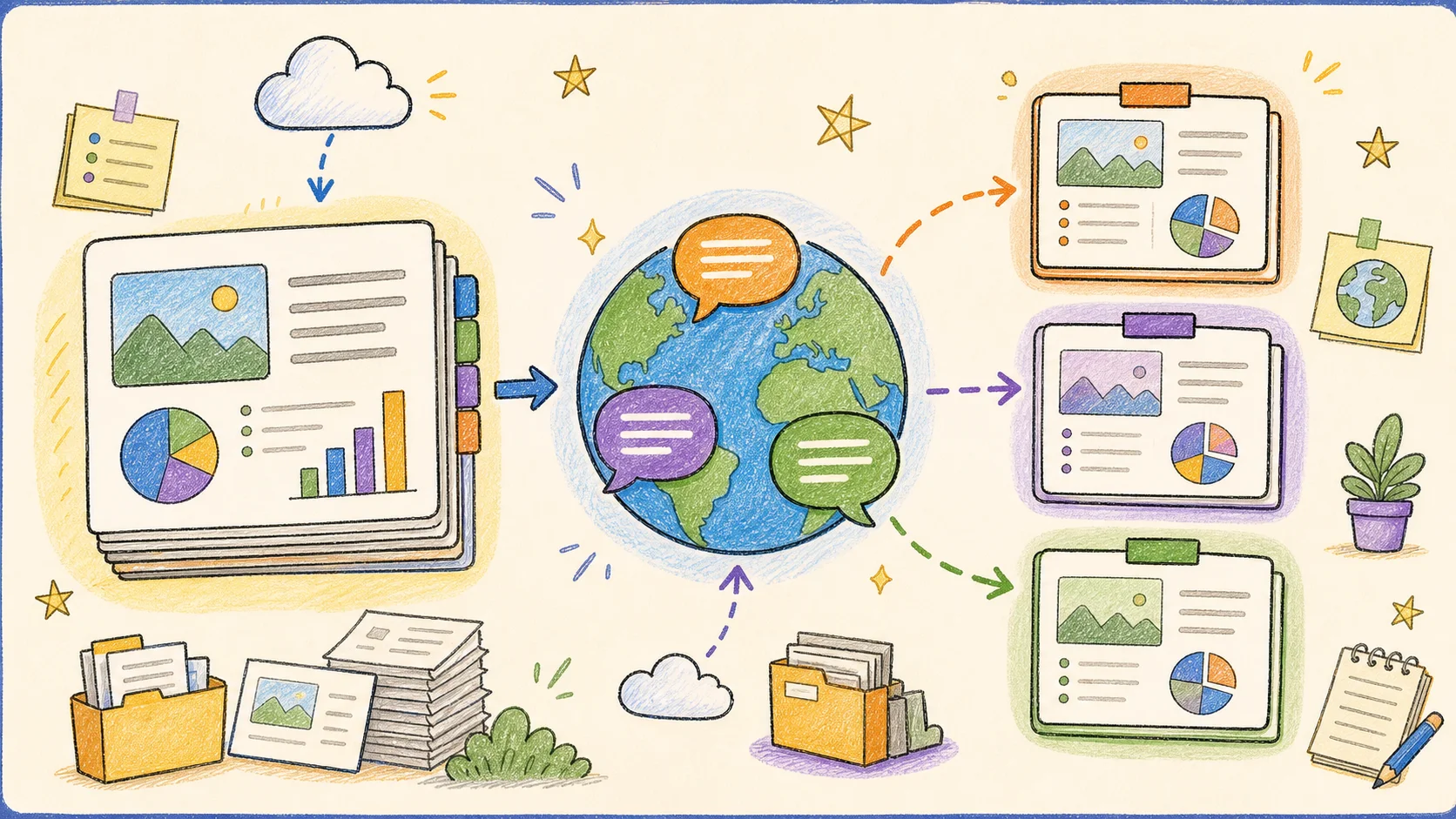
Translating a small PowerPoint file is easy. Translating a 1GB presentation packed with 4K images, embedded videos, charts, custom fonts, and complex animations is a different problem.
Many translation tools are designed for text documents or lightweight presentations. Large PowerPoint files may exceed upload limits, fail during processing, or come back with broken layouts and missing media. Splitting the deck into smaller parts can help with file size, but it also creates more manual work and more opportunities for formatting errors.
This guide explains why PowerPoint files become so large, which AI translation options are practical for oversized decks, and what to check before choosing a tool.
Quick Answer: What Is the Best Way to Translate a 1GB PowerPoint File?
For a small presentation or a few text snippets, PowerPoint’s built-in translation feature may be enough. Google Translate and DeepL can work well for short files when you are comfortable checking the result and managing the file-size limits.
For a large, media-rich presentation, use a workflow designed to process the presentation as a presentation. DeckFlow supports PowerPoint files up to 1GB and is designed to preserve slide layouts and presentation elements during translation.
Choose based on the job:
- Small text edits: use PowerPoint’s built-in translator.
- Short, text-focused files: consider Google Translate or DeepL, subject to current upload limits.
- Large or complex decks: use DeckFlow’s PowerPoint translation workflow.
- Highly sensitive or regulated content: review the tool’s privacy, retention, and account policies before uploading.
The key question is not only whether a tool can translate the words. It is whether the translated file is still usable as a presentation.
Why Do PowerPoint Files Exceed 1GB?
Modern presentations often contain much more than editable text. A deck can become very large when it combines high-resolution media, embedded objects, and advanced design elements.
1. Embedded media and visual assets
- 4K images: A single uncompressed photograph can add tens of megabytes.
- Embedded videos: Even short, high-resolution clips can add hundreds of megabytes.
- Audio files: Narration, music, and sound effects increase the total file size.
- 3D models: Engineering, architecture, manufacturing, and product presentations may contain detailed models.
- Large image collections: Research and medical decks often use many microscopy, pathology, or technical images.
2. Complex design elements
- Custom fonts: Some language-specific font families can be large, especially when multiple weights are embedded.
- Animations and transitions: A deck with extensive motion effects can contain many additional assets and instructions.
- Interactive charts: Dynamic charts and data visualizations can add complexity to the file structure.
- SmartArt and diagrams: Editable diagrams are more difficult to process than plain text blocks.
3. Industry-specific requirements
Large presentations are common in industries where every slide needs to carry detailed visual information:
- Healthcare presentations may include high-resolution pathology images and clinical diagrams.
- Engineering proposals may include CAD renders, 3D blueprints, and technical drawings.
- Government and international organization reports may contain dense tables, maps, and policy data.
- Corporate training decks may combine videos, quizzes, charts, and interactive navigation.
When a file contains these elements, translation is also a file-processing problem. A text-only tool may not understand how the content is organized across the deck.
Who Needs to Translate Large PowerPoint Files?
Multinational companies
Global product launches, sales enablement materials, investor presentations, and training programs often need localized versions for different markets. Rebuilding a large deck for every language can quickly become expensive and difficult to manage.
Academic and research teams
Biology, geology, medical, and technical presentations may include images, maps, charts, and terminology that must remain aligned with the original research. These decks are often too large for lightweight online translation tools.
International organizations
Policy documents, conference presentations, and institutional reports may contain hundreds of slides and strict formatting requirements. The translated version needs to remain readable, traceable, and visually consistent.
Agencies and localization teams
Translation agencies may handle large batches of client presentations. A workflow that preserves the source layout can reduce the time spent fixing text boxes, charts, and visual assets after translation.
Why Traditional Translation Methods Fail on Giant PPT Files
Manual copy and paste takes too long
Copying text from every slide into a translation tool and pasting it back into PowerPoint is slow for any deck. With a 1GB file containing hundreds of slides, the process becomes difficult to track and easy to get wrong.
It also creates problems with speaker notes, tables, chart labels, SmartArt, and text embedded inside visual elements.
Splitting the presentation creates new risks
Splitting a large deck into smaller files can make it easier to upload, but it adds several steps:
- Divide the original presentation into smaller sections.
- Translate each section separately.
- Recombine the translated files.
- Recheck fonts, links, animations, slide numbers, and navigation.
Every additional conversion or merge can change the layout. It is also harder to maintain consistent terminology across separate translation jobs.
Converting through another document format can break the deck
A workflow such as PowerPoint to Word, translation, and Word back to PowerPoint may preserve the words while damaging the presentation. Animations, hyperlinks, charts, embedded media, and spacing can be lost or changed during conversion.
For a presentation that needs to be presented immediately after translation, format preservation matters as much as language quality.
AI Tools for Translating Large PowerPoint Files
PowerPoint’s built-in translator
PowerPoint includes a translation feature that can translate selected text inside the application. It is convenient when you need to edit a sentence, a text box, or a small number of slides without leaving PowerPoint.
Its main limitation is workflow scale. You generally work with selected content rather than submitting an entire large presentation for automatic processing. For a deck with a large amount of text, repeated selection and review can still take significant time.
Use it for quick edits and short sections rather than as the default solution for a 1GB presentation.
Google Translate and DeepL
Google Translate and DeepL are useful when translation quality is the main priority and the source file is small enough to upload. DeepL is often valued for natural-sounding translations, especially for many European language pairs. Google Translate offers broad language coverage and is familiar to many users.
However, document upload limits vary by tool, plan, and account. Smaller PowerPoint files may work well, while oversized decks require manual splitting or text extraction. Before relying on either service, check its current file-size rules and verify whether the exported presentation preserves the layout you need.
These tools are a reasonable fit for short, text-focused presentations. They are less convenient for media-heavy decks that exceed their upload limits.
DeckFlow
DeckFlow is designed for presentation translation rather than text-only translation. It supports PowerPoint files up to 1GB and can process presentation elements such as images, charts, SmartArt, and other visual content while preserving the original slide structure.
This makes it a better fit for large decks that would be difficult to split or rebuild manually. It is particularly useful for multinational teams, research groups, localization agencies, and organizations that need translated presentations without starting the design work over.
You can translate a large PowerPoint file with DeckFlow and review the output before downloading it.
Which Tool Should You Choose?
Use the simplest workflow that matches the size and complexity of your deck:
- Quick edits: PowerPoint’s built-in translator is convenient for a few selected text elements.
- Small presentations: Google Translate or DeepL may be suitable if the file is within the current upload limit.
- Large, media-rich presentations: DeckFlow is better suited to files up to 1GB and presentation-level formatting requirements.
- Highly customized decks: Always review the translated output manually, especially when the deck contains animation, embedded media, or custom fonts.
Translation quality, file-size support, and formatting preservation should be evaluated together. A tool that produces natural sentences but returns a broken presentation may create more work than it saves.
How to Translate a 1GB PowerPoint File with DeckFlow
A typical workflow looks like this:
- Open DeckFlow’s presentation translation workflow.
- Upload the PowerPoint file you want to translate.
- Select the source language and target language.
- Start the translation and allow the file to finish processing.
- Preview the translated presentation and compare key slides with the original.
- Download the translated file after reviewing the result.
For a large presentation, review a representative sample instead of checking only the first few slides. Include slides with charts, tables, SmartArt, images containing text, animation, and dense paragraphs in your review.
Before sharing the final file, check:
- Text fit and line breaks.
- Font substitution and character support.
- Chart labels, table cells, and SmartArt text.
- Hyperlinks and slide navigation.
- Embedded images, audio, and video.
- Terminology for product names and industry-specific terms.
- Speaker notes if they are part of the presentation workflow.
Limitations to Check Before Uploading a Large Deck
Even a tool built for large files needs to be evaluated against the specific presentation.
Check the following before starting a production translation:
- Upload limit: Confirm the maximum file size for your account and workflow.
- Processing time: Large files can take longer to analyze and translate than ordinary decks.
- Media behavior: Verify whether embedded video, audio, and 3D objects remain available in the output.
- Custom fonts: Check whether the target language requires fonts that are not present in the original file.
- Text expansion: Some translations are longer than the source language and may require spacing adjustments.
- Confidentiality: Review how uploaded files are stored, processed, and deleted.
- Quality review: Have a native speaker or subject-matter expert check important slides before distribution.
Large-file support removes one major obstacle, but it does not replace a final human review for client-facing, legal, medical, or technical presentations.
Stop Wrestling with Giant PowerPoint Files
For multinational teams, researchers, agencies, and institutions, translating a 1GB PowerPoint file is not just a language task. It is also a problem of file size, presentation structure, media handling, and formatting integrity.
PowerPoint’s built-in translator is useful for small edits. Google Translate and DeepL can be effective for smaller files when their upload limits are sufficient. For a large presentation with images, animations, charts, SmartArt, or embedded media, a presentation-focused workflow is more practical.
Try DeckFlow’s PowerPoint translation workflow when you need to translate a file up to 1GB while keeping the presentation usable after translation.
FAQ
Can AI translate a 1GB PowerPoint file?
Some AI translation tools have upload limits that are too low for a 1GB presentation. DeckFlow supports PowerPoint files up to 1GB. You should still check the current limits for your account and test the output before sharing the final deck.
What is the largest PowerPoint file Google Translate can translate?
Google’s document upload limits can vary by product and account. Check the current limit before uploading. If the file is too large, splitting it may be necessary, but this can add formatting and terminology risks.
Can DeepL translate a large PowerPoint file?
DeepL can translate supported PowerPoint documents, but its file-size limits depend on the current plan and upload rules. It is better suited to files that fit within those limits and do not require a complex media-preservation workflow.
Will translating a large PPT break animations and charts?
It can, depending on the translation method and the content of the presentation. Review animations, chart labels, SmartArt, hyperlinks, and embedded media after processing. Avoid converting the deck through unrelated document formats unless you are prepared to rebuild and test the presentation.
Do I need to split a 1GB PowerPoint file before translating it?
Not necessarily. A tool with support for large PowerPoint files may process the deck as one presentation. Splitting is a fallback when a tool cannot accept the original file, but it adds manual work and makes it harder to maintain consistent formatting and terminology.
Can I translate a PowerPoint file without losing its formatting?
A presentation-focused translation workflow gives you a better chance of preserving the layout, but no automated process removes the need for review. Check the translated deck for text expansion, fonts, charts, images, animations, and media before presenting it.
Related Resources
For a broader guide to presentation translation, read How to Translate Keynote Presentations & Slides.
If you need to translate a PowerPoint deck accurately while preserving its structure, read How to Translate PowerPoint Presentations Accurately.
When you need to translate a native Keynote file, see How to Translate a Keynote Presentation before converting it to PowerPoint.