
How to Ensure Accurate Translation of Your PowerPoint Presentations
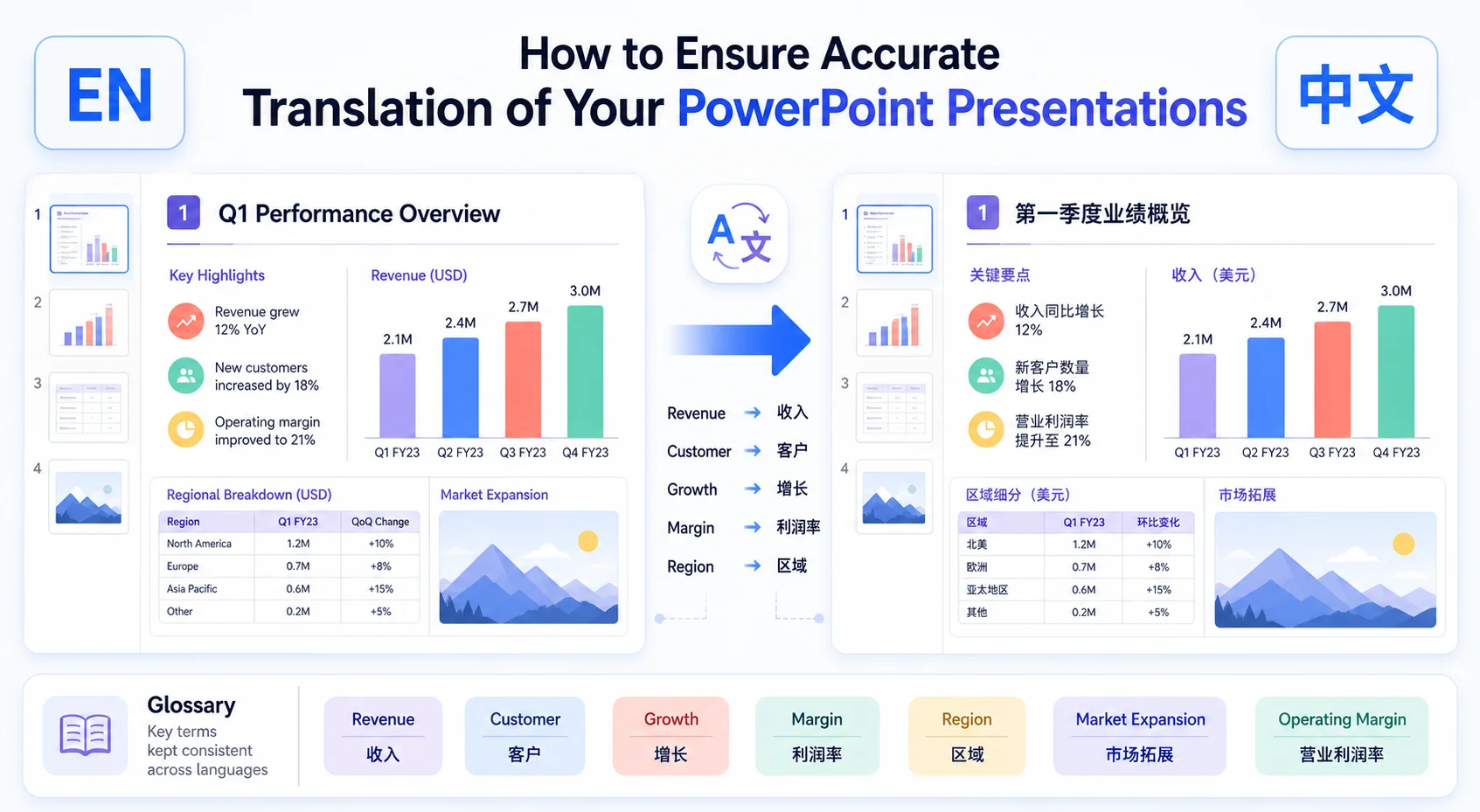
When preparing a multilingual presentation, one factor matters above all: translation accuracy. Whether you are giving a business pitch, an academic talk, or introducing a new product, a poorly translated slide deck can weaken your message, damage your professional image, and create misunderstandings.
So how can you ensure that your PowerPoint translation is both precise and professional?
Why Are PowerPoint Translations Prone to Errors?
Unlike a Word document, a PowerPoint presentation is less structured and much more visual. A single deck may combine text boxes, charts, SmartArt, tables, screenshots, diagrams, and other embedded elements. That complexity creates several common translation problems:
- Scattered content and inconsistent structure: Important text can be spread across many different slide elements, making it easy to miss or mistranslate part of the presentation.
- Inconsistent terminology: The same word may be translated differently across slides, making the deck feel unprofessional and confusing the audience.
- Manual translation is slow and error-prone: Copying text from each slide into a translation tool takes time and increases the chance of omissions and copy-and-paste mistakes.
- Basic machine translation lacks context: Sentence-by-sentence translation may miss the purpose of a slide, the relationship between a heading and a chart, or the meaning of a term in a specific industry.
These issues become more serious when the presentation is long, includes multiple contributors, or needs to be delivered under a tight deadline.
How to Improve the Accuracy of Your Presentation Translation
The quality of a translated presentation depends on more than the translation engine. A reliable workflow starts by defining the context and protecting the structure of the original deck.
Know your audience and context
Before translating, define the purpose of the presentation and the people who will read or hear it. Is it a product pitch, a market report, a training deck, or a scientific lecture? Is the audience made up of customers, investors, employees, students, or researchers?
This context helps determine the appropriate tone, level of formality, and terminology. A sales presentation, for example, may need concise and persuasive language, while a research presentation may require more formal and specialized wording.
Create a glossary of key terms
Prepare a list of important terms before starting the translation. A glossary helps ensure that product names, technical phrases, company terminology, and recurring concepts are translated consistently across all slides.
A useful glossary can include:
- Product and feature names.
- Industry-specific terms.
- Company and organization names.
- Preferred translations for recurring phrases.
- Acronyms and abbreviations.
- Terms that should remain in the original language.
Without a glossary, the same word may appear in several different forms in one presentation. That inconsistency can make the content harder to follow and may change the meaning of an important statement.
Use tools with contextual understanding
Basic machine translation often treats each sentence as an isolated piece of text. A presentation-aware AI translation tool can use the surrounding slide content, paragraph structure, and slide hierarchy to produce a more suitable result.
Context is especially important for short headings, chart labels, bullet points, and phrases that can have different meanings in different industries. A good translation workflow should consider how a piece of text functions on the slide, not only how it reads as a standalone sentence.
Choose tools that handle structured elements
Make sure the translation workflow can process the different elements inside a real PowerPoint presentation. A tool that only extracts ordinary text boxes may leave important content untranslated.
Look for support for:
- Text boxes and slide titles.
- Tables and chart labels.
- SmartArt and diagrams.
- Captions and annotations.
- Text embedded inside images.
- The original slide layout and visual hierarchy.
This helps ensure that the translated presentation is complete and still looks like the original deck.
DeckFlow: A Smarter Way to Translate Presentations
DeckFlow is an AI-powered translation tool designed for PowerPoint and PDF presentations. It supports the elements that make presentation translation different from ordinary document translation.
Key capabilities include:
- Context-aware translation: DeckFlow goes beyond sentence-by-sentence translation and considers the structure and flow of the presentation.
- Glossary support: Upload your own terminology list and apply it across the presentation to keep important terms consistent.
- Full element coverage: Translate text boxes, charts, SmartArt, tables, and text inside images so important slide content is not missed.
- Original layout preservation: Keep the presentation’s formatting and visual structure, reducing the need to rebuild the slides after translation.
The goal is not only to produce translated words. It is to create a translated presentation that remains accurate, readable, and ready to use.
How to Translate a Presentation Accurately with DeckFlow
The basic workflow is simple:
1. Open DeckFlow
Go to DeckFlow and open the presentation translation workflow.
2. Upload your PowerPoint file and choose the target language
Upload the PowerPoint presentation you want to translate, then select the target language. If your deck uses specialized terminology, upload or enable your glossary so the translation follows your preferred wording.
Before starting, check that you have uploaded the correct file and that the target language matches the audience for the presentation.
3. Click Translate and review the result
Start the translation and wait for the file to process. When it is ready, review the translated presentation and check the terminology, slide structure, charts, tables, image text, and formatting.
If a phrase needs to be changed, adjust it before downloading the final version. A quick review is especially important for proper names, numbers, product terms, legal statements, and content embedded inside images.
Whether you are localizing a market report, training material, academic presentation, or product pitch, a structured translation workflow helps you create a more professional result with less manual cleanup.
A Practical Review Checklist
Before sending or presenting the translated PowerPoint deck, check:
- Is the main message of every slide still accurate?
- Are product names and technical terms consistent?
- Are numbers, dates, currencies, and units correct?
- Are chart labels, legends, and table headings translated?
- Is text inside screenshots or diagrams handled correctly?
- Did any translated text overflow its original text box?
- Are fonts, colors, spacing, and slide layouts preserved?
- Are speaker notes or disclaimers included if they are needed?
- Does the deck still look balanced in full-screen presentation mode?
This final review does not need to be a complete redesign. When the translation workflow preserves the original layout, you can focus on language accuracy and a few high-value visual checks instead of rebuilding every slide.
Translate PowerPoint Presentations with More Confidence
Accurate presentation translation requires more than replacing one sentence with another. You need to understand the audience, control important terminology, translate every relevant slide element, and protect the visual structure of the original deck.
DeckFlow combines contextual translation, glossary support, coverage for charts and image text, and layout preservation in one workflow. That makes it easier to produce a PowerPoint presentation that is clear, consistent, and ready for a professional audience.
If translating presentations has been a recurring pain point, try DeckFlow and create a more accurate version of your next multilingual deck.